Smart Home

Useful smart-home devices, connected living tips and practical technology.

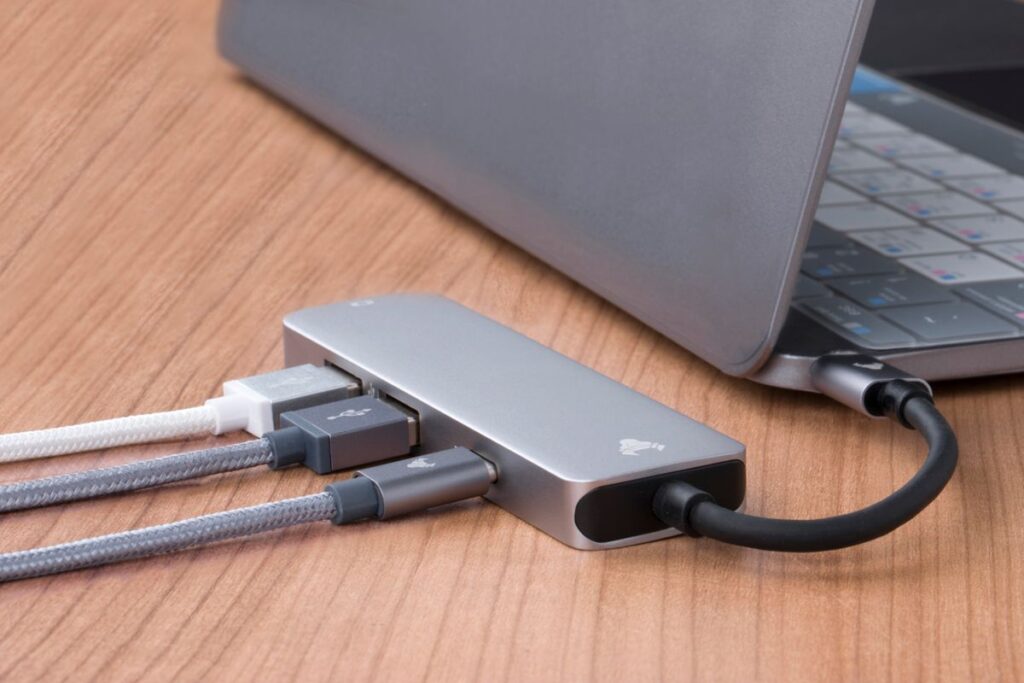
USB hub connected to a laptop on a wooden desk
Smart Home

USB-C Hub vs Docking Station: What Works for Two Monitors?

Disclosure: As an Amazon Associate, My Indoor Space earns from qualifying purchases through links in this article, at no extra cost to you.

Quick verdict

Choose a compact hub for occasional connections when its exact video specification matches your laptop. Buy a powered docking station for a permanent desk with several peripherals. Two display sockets alone do not guarantee two independent screens.

Research-based buying guide. Product information checked October 16, 2026. We have not tested these products hands-on; recommendations distinguish published features from our buying judgments.

USB-C dual-monitor hubs

dual-monitor docking stations
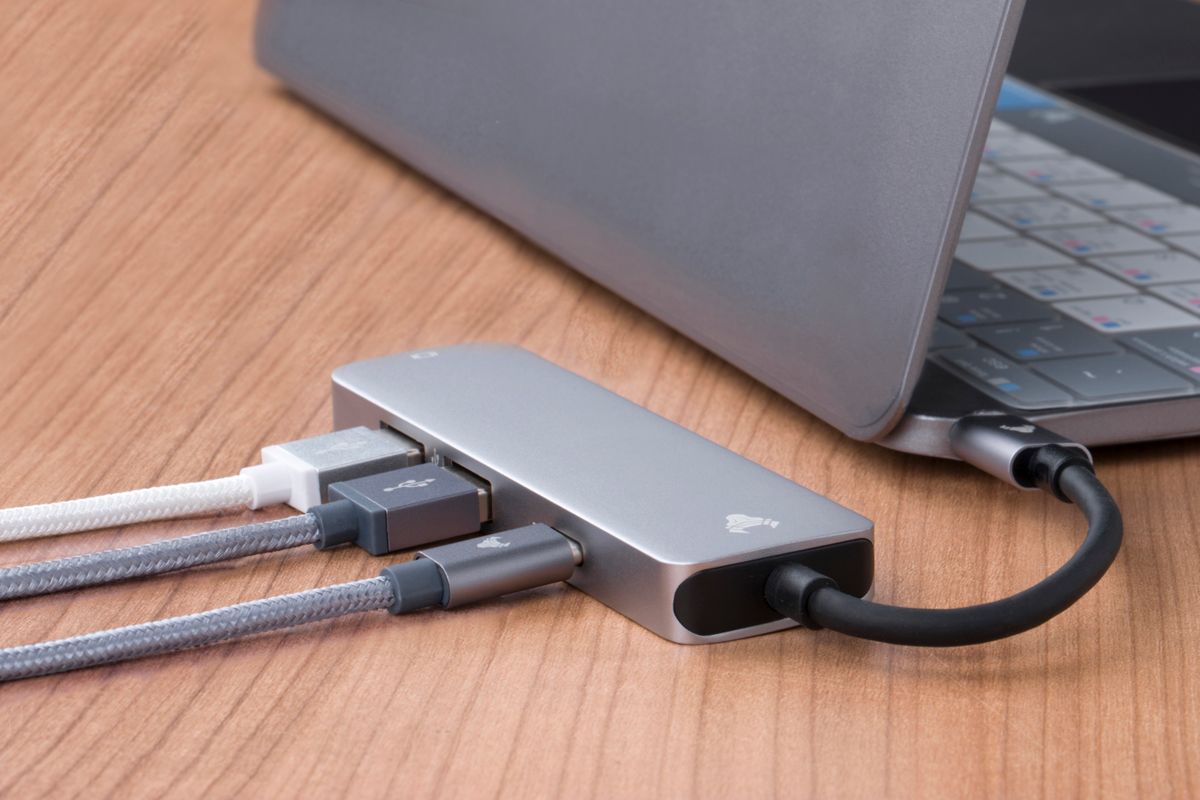
USB hub connected to a laptop on a wooden desk
Illustrative connection photo; not a verified dual-monitor compatibility demonstration. Photo: Pexels.

A hub and a docking station can look like two sizes of the same product. For a two-monitor desk, the important difference is the connection inside: the laptop must support the method the accessory uses to send video. Start with the computer model, not the number of HDMI ports in the photograph.

The buying differences

Decision Compact USB-C hub Powered desk dock
Best setting Travel or a desk you clear regularly Permanent keyboard, drives, network and displays
Power Often requires your separate charger for pass-through May include a supply; verify laptop power delivered
Two screens Depends on host, video method and bandwidth Still depends on host and dock technology

Check the laptop before ordering

A USB-C connector is a shape, not a promise of video output. Read the computer’s port specifications for DisplayPort video, Thunderbolt or USB4 support, then compare the dock’s supported operating systems. Record the resolution and refresh rate you want on both screens simultaneously. A single-screen maximum can be different from the dual-screen maximum.

Many adapters use DisplayPort Multi-Stream Transport, or MST. StarTech documents macOS limitations for independent extended displays through MST hubs. A suitable Thunderbolt dock or a DisplayLink solution may be appropriate instead, depending on the exact Mac and software. Check the manufacturer’s compatibility table for your model; “Mac compatible” can mean mirrored screens rather than the arrangement you want.

Power and peripherals can change the answer

A pass-through hub does not create charger power. Its own operation also takes some power, so the charger input rating and the laptop’s available charging output are different numbers. Confirm whether the advertised wattage requires a separately purchased adapter. With a powered dock, check the included supply, host cable and actual charging output, rather than assuming the power brick’s total rating reaches the computer.

Count your USB accessories and their connector types. An external drive, webcam and wired network connection can make a larger dock useful even if a smaller hub handles the screens. Conversely, paying for unused Ethernet, audio and extra ports adds cost and clutter. Check cable length and whether the dock can sit where its ventilation stays clear.

When the upgrade is worth it

Buy the hub if you connect one or two basic accessories and have verified the display combination in writing. Buy the dock when a single daily connection replaces several cables and its power delivery suits the laptop. Keep your existing setup if it already runs both screens reliably: a larger enclosure by itself does not improve picture quality.

Before you click buy

Write down the laptop model, operating system, two monitor inputs, target resolutions, charging requirement and included cables. Match every item to the listing or manual. Return terms matter when a compatibility table does not explicitly cover your configuration.

Compare current listings in your country

These buttons open matching Amazon search listings rather than a guaranteed in-stock offer. Confirm the exact model, seller, included parts, delivered price and return terms. Offers can differ between the United States and Canada.

USB-C dual-monitor hubs

dual-monitor docking stations

Related guides on My Indoor Space

Sources and research

Digital room meter displaying temperature and humidity
Smart Home

SwitchBot Meter Plus vs Govee H5075: Which Humidity Monitor Fits?

Disclosure: As an Amazon Associate, My Indoor Space earns from qualifying purchases through links in this article, at no extra cost to you.

Quick verdict

Choose H5075 for straightforward Bluetooth monitoring when its display and local price suit you. Choose Meter Plus if you already use SwitchBot or want its supported hub-based automation path. Neither should be assumed to provide away-from-home alerts as a standalone Wi-Fi sensor: H5075 is Bluetooth-only, and Meter Plus needs the appropriate hub for remote functions.

Research-based buying guide. Product information checked October 16, 2026. We have not tested these products hands-on; recommendations distinguish published features from our buying judgments.

SwitchBot Meter Plus

Govee H5075

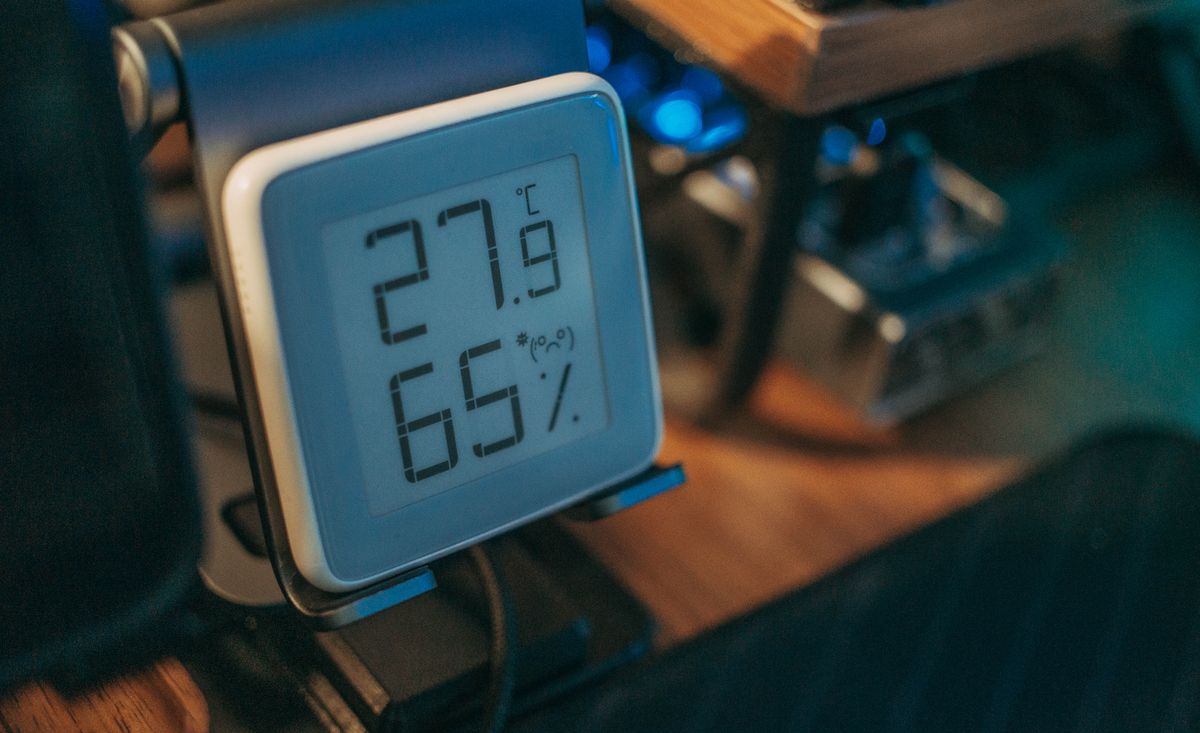
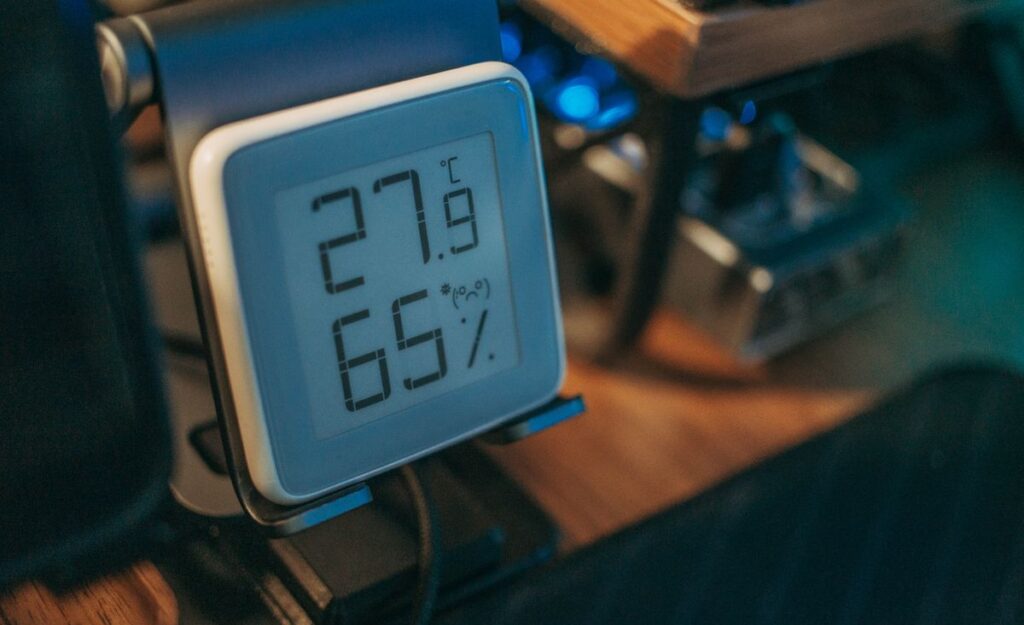
Digital room meter displaying temperature and humidity
Illustrative meter photo; not a verified image of either compared model. Photo: Pexels.

A room monitor should make temperature and humidity easier to understand. The display, placement and connection route matter more than a long app description. First decide whether you only want to glance at the room reading or need an alert while you are somewhere else.

Local versus remote is the main decision

Need What to buy for
Reading visible on a shelf Display size, angle and placement
Phone history at home Bluetooth range and app behaviour
Away-from-home notifications A documented hub or Wi-Fi path
Triggering another device Explicit ecosystem compatibility

Why choose H5075?

Govee’s Canadian H5075 page identifies it as a Bluetooth hygrometer thermometer with an LCD display, app history and export functions. Its FAQ specifically says it does not support Wi-Fi.

That makes it relevant for someone who wants nearby readings and history through a phone. Marketing language such as remote monitoring should not be interpreted as a promise that a standalone Bluetooth device remains connected while you are across the city.

Why choose Meter Plus?

Meter Plus offers a readable room display with several placement options, and SwitchBot describes a hub-based route for remote functions and automations. A supported hub relays readings when the meter is within its Bluetooth range.

This is useful if you already own suitable SwitchBot equipment. It is less compelling if you must buy a hub only to see a reading that you could comfortably check on the screen. Price the whole arrangement before choosing on sensor cost alone.

Check the exact automation

A meter detecting a threshold does not mean every humidifier or fan can be controlled by it. The target device, hub, app and permitted action all need to fit the supported system. A smart plug cannot press an appliance’s electronic start button.

Before buying, describe the action you want in one sentence: for example, “notify my phone when this room crosses a chosen threshold.” Verify that precise action rather than assuming all smart-home products interoperate.

Do not buy on tiny accuracy differences alone

Manufacturers publish accuracy specifications, but we have not calibrated these monitors or compared them against a reference instrument. A small stated difference is not proof that one will always read closer to the true room conditions.

Placement also changes what is measured. Keep a room monitor away from a direct mist stream, hot radiator, sunny window or another source that makes the immediate spot unlike the rest of the room. Let readings settle after moving the device.

Screen and history checks

Read the display from the distance and angle where it will sit. Small text that looks clear in a close-up product photo may be hard to read from a chair. Consider whether you need both numbers visible without tapping an app.

Check the current app’s recording, syncing and export limits. History retention can depend on where data is stored and whether the device is regularly connected. Do not infer unlimited permanent history from a graph shown in an advertisement.

Who should skip both?

Choose a directly Wi-Fi-connected or otherwise supported system if independent remote monitoring is essential and you do not want a hub. Choose a simple non-app meter if the only requirement is an occasional visible reading.

Neither product is a CO2 monitor, smoke alarm or comprehensive air-quality instrument. Do not buy a temperature-and-humidity display expecting it to measure gases or establish that indoor air is safe.

Value and the final winner

Compare Canadian or U.S. totals including batteries, hubs and the number of rooms. A multipack is useful only when you have a purposeful location for each monitor. Test actual Bluetooth reach through your walls during the return period.

H5075 is a sensible local Bluetooth option. Meter Plus earns its place when the SwitchBot system and hub functions are part of your plan. The right connectivity path is more important than a small difference in a specification table.

Compare current listings in your country

These buttons open matching Amazon search listings rather than a guaranteed in-stock offer. Confirm the exact model, seller, included parts, delivered price and return terms. Offers can differ between the United States and Canada.

SwitchBot Meter Plus

Govee H5075

Related guides on My Indoor Space

Sources and research

Bathroom vanity and sink with storage cabinet
Smart Home

Aqara Water Leak Sensor vs Tapo T300: Which Hub System Should You Choose?

Disclosure: As an Amazon Associate, My Indoor Space earns from qualifying purchases through links in this article, at no extra cost to you.

Quick verdict

Choose the sensor that fits a compatible hub you already own. Starting fresh, compare the full hub-and-sensor cost and how you want local and remote alerts to work. T300 advertises an onboard audible alarm; Aqara’s original sensor relies on its supported hub for the advertised alarm-and-notification system. Neither is an automatic water shutoff valve.

Research-based buying guide. Product information checked October 16, 2026. We have not tested these products hands-on; recommendations distinguish published features from our buying judgments.

Aqara Water Leak Sensor

Tapo T300

Bathroom vanity and sink with storage cabinet
Illustrative bathroom photo; no installed leak sensor is shown. Photo: Pexels.

A low sensor price can hide the cost of the hub needed to make it useful. Both of these products are part of a system. Buying the wrong radio or assuming a Wi-Fi router is the required hub can leave you with a device that cannot deliver the alerts you expected.

Start with compatibility

Question Aqara original sensor Tapo T300
Supported hub required? Aqara says yes Tapo says yes for the smart system
Alarm approach Advertised Aqara hub alarm Onboard alarm plus supported hub functions
Buy for an existing system? Check your Aqara hub compatibility Check your Tapo hub and region

Why an existing hub changes the value

If a compatible Aqara hub is already positioned within range, adding the original Aqara sensor may be the simplest purchase. If you already use a suitable Tapo hub, T300 may avoid starting a second system.

Do not assume any hub carrying Zigbee, Matter or smart-home branding accepts every sensor. Tapo’s FAQ specifically says T300 must connect to a Tapo hub. Check exact model and regional radio compatibility before buying an imported sensor pack.

Local sound and away-from-home alerts differ

Tapo advertises T300’s built-in siren and top-and-bottom detection probes. Its smart notifications and hub functions still require the supported hub setup. Aqara’s original Water Leak Sensor advertises triggering the Aqara hub alarm and push notifications.

Decide which alert you need: sound near the leak, sound elsewhere in the home or a phone notification while away. Those are separate paths. Check account settings, hub location and phone permissions, then test the complete path as instructed.

Place the contacts where water will reach them

A sensor cannot identify a leak that never reaches its detection points. Examine the floor under the sink, appliance or other permitted location for low spots, raised edges and obstacles. A shallow tray may direct water away from a device placed just outside it.

Keep the sensor accessible for testing, battery replacement and cleaning. Follow the manufacturer’s orientation and placement guidance. Do not bury it beneath stored cleaning products where you cannot see or reach it.

Do not confuse detection with stopping water

These purchases do not, by themselves, close the water supply. An alert gives you information to act on. Automatic shutoff would require a separately compatible valve arrangement and appropriate installation.

In a rental, report plumbing faults rather than treating a sensor as the repair. A device can add awareness, but it does not remove the need to address a known drip or faulty connection.

Build a realistic system cost

List the hub, number of sensors, batteries or replacements and any accessories required. Compare a complete supported bundle with buying parts separately. Check whether the hub needs a conveniently positioned outlet and reliable network connection.

For several locations, price the sensors you need rather than buying a large pack because the per-sensor figure looks attractive. A sensor in a useless location has little value. Conversely, a single sensor cannot monitor every cabinet and appliance in an apartment.

Test and maintain the alert path

Use the maker’s test method and verify phone notifications and audible alerts. Check what happens when the phone is away from home and whether the system reports low batteries or offline devices. Internet and power outages can affect parts of the alert chain.

We have not tested detection delay, radio range or reliability of these units. Advertised alarm loudness and water-resistance ratings do not guarantee that you will hear an alert through a closed door or detect every spill.

Final choice

Existing compatible-hub ownership is the strongest reason to choose either system. T300 is especially worth examining when an onboard alarm matters; Aqara is sensible in a supported Aqara setup. Compare complete regional compatibility and test the alerts, rather than buying the cheapest standalone sensor listing.

Compare current listings in your country

These buttons open matching Amazon search listings rather than a guaranteed in-stock offer. Confirm the exact model, seller, included parts, delivered price and return terms. Offers can differ between the United States and Canada.

Aqara Water Leak Sensor

Tapo T300

Related guides on My Indoor Space

Sources and research

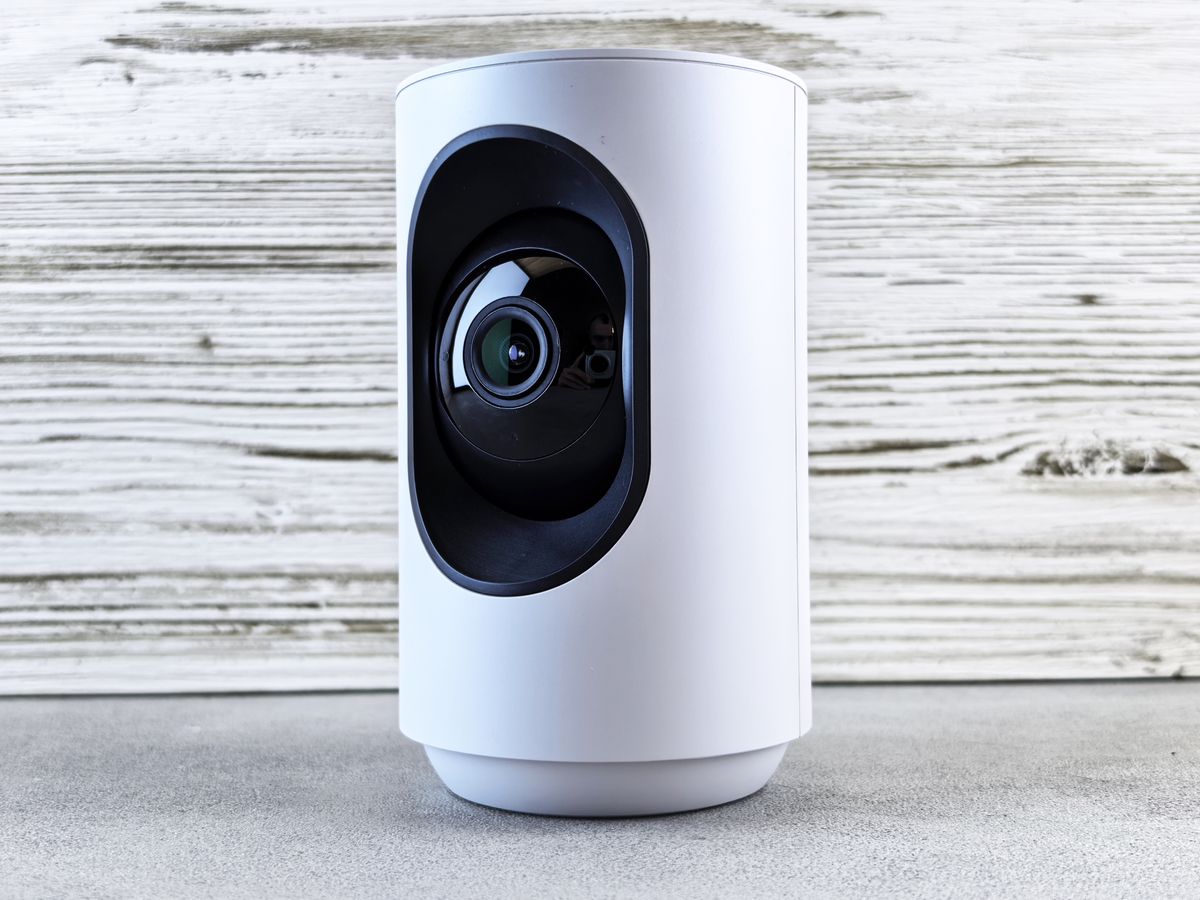
White indoor security camera on a wooden surface
Smart Home

Tapo C210 vs C220: Is the Indoor Camera Upgrade Worth It?

Disclosure: As an Amazon Associate, My Indoor Space earns from qualifying purchases through links in this article, at no extra cost to you.

Quick verdict

Choose C210 when it meets your viewing and alert needs at a lower price. Consider C220 when its documented 4MP resolution or specific detection features solve your use case. Check hardware version and region: current C210 listings already advertise some smart detection, so ‘C210 has no AI’ is an unreliable blanket comparison.

Research-based buying guide. Product information checked October 16, 2026. We have not tested these products hands-on; recommendations distinguish published features from our buying judgments.

Tapo C210

Tapo C220

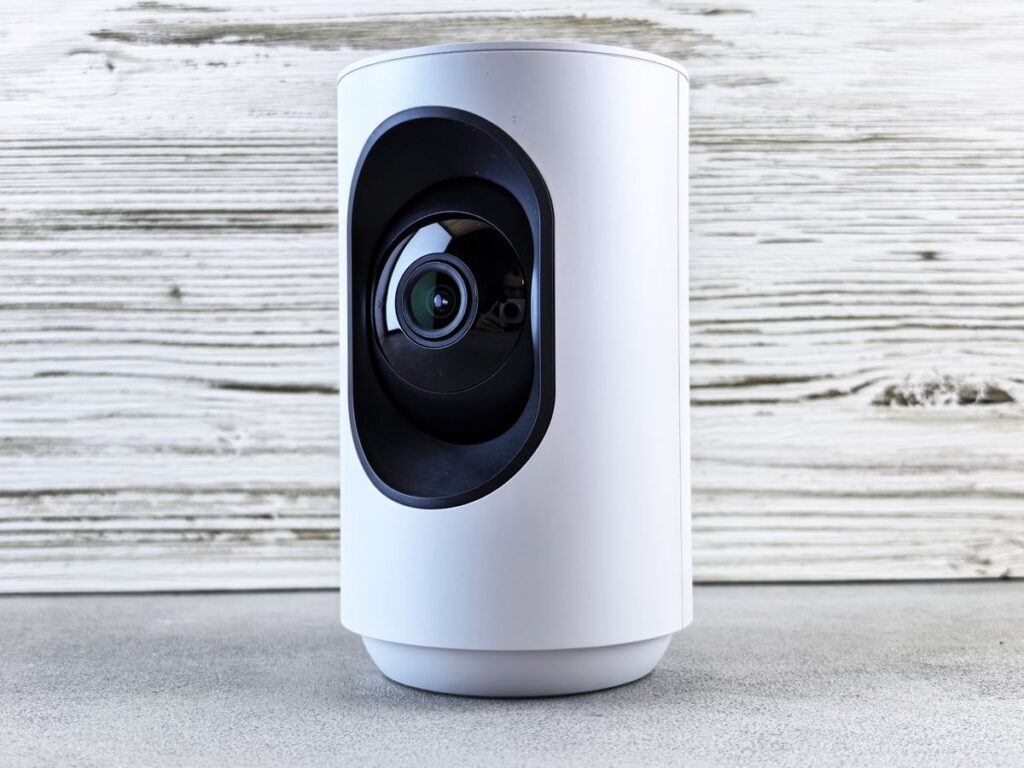
White indoor security camera on a wooden surface
Illustrative camera photo; not a verified C210 or C220. Photo: Pexels.

A small indoor camera should help you see a particular area and retrieve useful recordings. A higher number on the box does not solve poor placement, unreliable Wi-Fi or an unsuitable storage plan. Start with the scene you need to see.

The comparison needs a version number

TP-Link’s published V1 comparison lists C210 at 2304 × 1296 resolution, commonly described as 3MP, and C220 at 2560 × 1440, described as 4MP QHD. These specifications apply to the referenced versions, not every regional revision sold under the same name.

Current U.S. C210 marketing also includes person detection, while C220 highlights additional detection uses. Read the regional specification and firmware support for the stock you will receive. Avoid paying for an upgrade based on a feature the cheaper unit already supplies.

Which difference is useful?

Your priority What to inspect
General room overview Placement and usable field of view
Seeing a smaller detail Resolution at your actual distance
Fewer irrelevant alerts Exact supported detection types and settings
Retrieving a recording Local storage and any cloud-plan requirements

Resolution is only part of image quality

C220’s documented resolution is a reason to consider it when you need more detail, but we have not tested image quality side by side. Lighting, subject distance, compression and movement can affect what you can identify.

Put the camera close enough to the area of interest without blocking its movement. A clear view of an entire room can still leave faces or labels too small to interpret. Decide what detail matters rather than buying on the phrase “2K,” which appears across different resolutions.

Pan and tilt do not see everywhere simultaneously

These cameras can aim around a room, but the lens records the direction it is facing at that moment. Coverage claims should not be interpreted as a simultaneous panoramic recording of every corner.

Check how tracking, privacy zones and saved positions behave on your actual model. For a critical doorway, a stable useful view may matter more than frequent automatic movement. Verify the camera returns to the position you expect.

Storage needs its own budget

Check the supported memory-card capacity, recording modes and recommended card type for the exact version. An empty card slot does not include a card. Cloud clips and features may involve a separate Tapo Care plan, so confirm what remains available without a subscription.

Test playback and exporting a clip before relying on the system. Local storage is convenient, but a card inside a camera can be lost with the camera. Choose an appropriate arrangement for the importance of the footage.

Privacy and household use

Place indoor cameras deliberately and tell household members where they record. Use privacy mode and zones as supported, and check whether audio is enabled. Avoid putting a camera where sensitive personal activity is unnecessarily captured.

Secure the account, apply available updates and review sharing permissions. Neither a privacy button nor a detection feature substitutes for understanding who can access live view and recordings.

Who should skip both?

Choose an outdoor-rated camera for weather exposure, or a different type where power and network needs do not fit. These indoor pan-and-tilt models should not be selected as battery cameras merely because they connect by Wi-Fi.

We have not tested alert accuracy, night imaging or network recovery. Marketing descriptions and hardware comparisons establish features, not a guarantee that an alert will arrive for every event.

Final value decision

Compare the correct regional adapter, hardware revision, card cost and optional plan before paying. For Canadian buyers, a lower U.S. price may add warranty and return complications.

C210 is the value starting point for a suitable general view. C220 earns an upgrade for verified detail or detection benefits you will use. Confirm the exact feature difference on today’s listing before treating the model number as the answer.

Compare current listings in your country

These buttons open matching Amazon search listings rather than a guaranteed in-stock offer. Confirm the exact model, seller, included parts, delivered price and return terms. Offers can differ between the United States and Canada.

Tapo C210

Tapo C220

Related guides on My Indoor Space

Sources and research

Living room with sofa, shelves and window curtains
Smart Home

Is SwitchBot Curtain 3 Worth It for Renters? Check the Full Setup Cost

Disclosure: As an Amazon Associate, My Indoor Space earns from qualifying purchases through links in this article, at no extra cost to you.

Quick verdict

Curtain 3 can be worth buying when opening hard-to-reach curtains is a daily nuisance and your existing rod or track passes SwitchBot’s compatibility checks. Skip it if the curtains already move poorly, the rental hardware would need alteration, or the complete cost of motors and required accessories outweighs the convenience.

Research-based buying guide. Product information checked October 16, 2026. We have not tested these products hands-on; recommendations distinguish published features from our practical buying judgments.

SwitchBot Curtain 3

Living room with sofa, shelves and window curtains
Illustrative living room photo; no SwitchBot installation is shown. Photo: Pexels.

A retrofit curtain motor is attractive in a rental because it can automate existing fabric without replacing the whole window treatment. The catch is that “retrofit” does not mean every rod, every curtain heading or every smart-home setup will work without extra parts.

Start with the window, not the app

Move the curtains manually from fully open to fully closed. Look for sticking rings, a raised joint in a telescopic rod, uneven track sections and fabric dragging on the floor. A motor is a poor first purchase for a window treatment that already needs mechanical attention.

SwitchBot publishes a compatibility guide for Curtain 3. Use the guide for your exact Rod or U Rail version, and check any additional I Rail accessory requirements separately. A generic listing photo is not enough to establish fit.

Who should buy it?

The strongest case is a curtain you open and close every day but find awkward to reach: behind a sofa, across a wide window or above a difficult corner. Scheduled movement can also suit someone who values a consistent morning and evening routine.

Buy it for that clear convenience benefit. Do not assign a guaranteed heating-bill saving or security benefit to an automated curtain. Those outcomes depend on the window, climate, schedule and wider household behaviour, and they are not measured in this guide.

Who should skip it?

  • Renters whose rod or track fails the maker’s fit checks.
  • Anyone who would need unapproved changes to landlord-owned hardware.
  • People who rarely open or close the curtains.
  • Buyers expecting one motor to operate every two-panel arrangement.
  • Households unwilling to maintain charging and occasional calibration.

If moving the curtains is already effortless, a motor may add complexity without a large benefit. A simpler change to furniture placement can sometimes make the existing curtain easy to reach at no cost.

One window may need two motors

SwitchBot explicitly says centre-opening curtains need two units when each side is to be controlled. That changes the cost substantially. Count the moving panels and their travel directions before comparing a single-motor headline price with a bundle.

Each device handles one panel; do not assume several motors can combine to pull one unusually long panel. Check the current maker guidance for unusual widths and arrangements. Measure the finished curtain hardware, not only the width of the glass.

Matter requires more than the curtain motor

Curtain 3 integrates with Matter through a compatible SwitchBot bridge rather than being a standalone native Matter curtain motor. Current support material lists bridge options including Hub 2, Hub 3 and Hub Mini Matter Enabled. Not every product simply named “Hub Mini” has identical capability.

Your chosen ecosystem can also require a compatible Matter controller. Confirm the complete path from curtain to SwitchBot bridge to Apple Home, Google Home or another platform. Buying only the motor because a listing says “supports Matter” can leave the intended voice-control setup incomplete.

The complete-cost checklist

Item When to include it
Curtain 3 motor For each panel that needs independent movement
Correct rail or rod version Always; check hardware before ordering
Compatible bridge For integrations that require it
Optional solar charging Only if light and placement make it useful
Any platform controller If required and not already owned

Compare that complete basket in CAD for Canadian delivery or USD for U.S. delivery, including tax and returns. A bundle is only a bargain when its motor type and hub version are correct.

Noise and charging expectations

SwitchBot advertises a quieter QuietDrift mode as well as normal operation. Manufacturer sound claims do not establish what you will hear through your wall or at the pillow. We have not measured its noise, so consider whether gradual scheduled movement suits your bedroom routine.

Plan how you will reach the motor for charging. An optional solar panel is useful only where it receives suitable light and can be positioned as directed. Do not assume a dim north-facing apartment window removes charging maintenance indefinitely.

A rental-friendly installation test

Keep the existing hardware and all removable parts. Follow the installation instructions without forcing a roller over an incompatible joint. If you need to drill, replace a landlord fixture or attach something permanently, resolve the tenancy permission before making that alteration.

During the return period, test full travel in both directions several times, stopping if fabric catches. Check that manual use and the household’s preferred controls remain understandable. Review schedules after calibration so curtains do not move at an unexpected time.

Final answer

Curtain 3 is worth considering for a compatible, frequently used and awkward-to-reach curtain. It is poor value when bought before measuring the track or counting the complete setup. Verify fit first, price all required parts, and pay for automation only when it removes a real daily annoyance.

Compare current listings in your country

These buttons open matching Amazon search listings, not a guaranteed in-stock offer. Check the exact model, included parts, seller, delivery total and return terms before buying. U.S. and Canadian offers can differ.

SwitchBot Curtain 3

Related guides on My Indoor Space

Sources and research

Collection of smart home devices on a white background
Smart Home

Tapo P125M vs Kasa EP25: Matter or Energy Monitoring?

Disclosure: As an Amazon Associate, My Indoor Space earns from qualifying purchases through links in this article, at no extra cost to you.

Quick verdict

Choose Tapo P125M when Matter-compatible on/off control is the goal. Choose Kasa EP25 when viewing a connected device’s electricity use is the priority. Do not assume P125M measures energy because another Tapo plug does, or assume EP25 is a Matter device because it supports Apple HomeKit.

Research-based buying guide. Product information checked October 16, 2026. We have not tested these products hands-on; recommendations distinguish published features from our practical buying judgments.

Tapo P125M

Kasa EP25

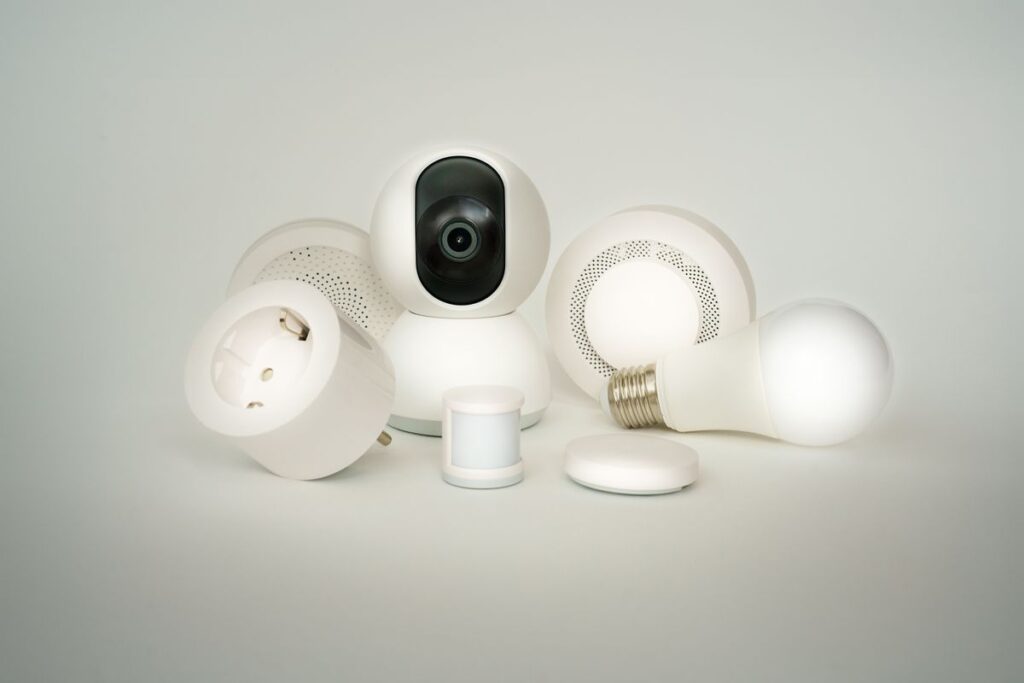
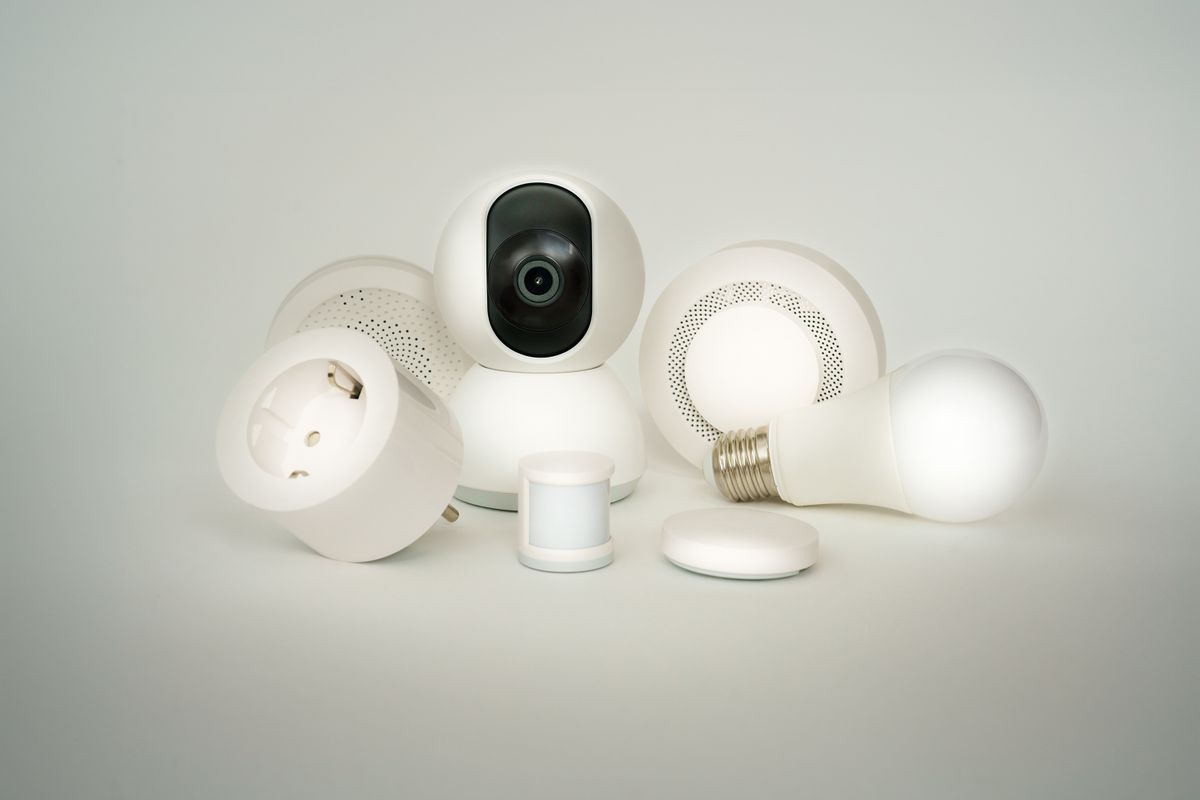
Collection of smart home devices on a white background
Illustrative smart home photo; not a verified image of the compared plugs. Photo: Pexels.

Smart plugs look interchangeable until you need a particular feature. These two TP-Link families illustrate the problem: cross-platform control and electricity monitoring are different capabilities. Buying the wrong one may still switch a lamp successfully while missing the reason you bought it.

The difference that decides this purchase

Priority Tapo P125M Kasa EP25
Matter-certified switching Yes, a central advertised feature Not the feature to assume from HomeKit support
Energy monitoring Not listed for the cited P125M Real-time and historical usage in the advertised feature set
Main app family Tapo Kasa
Good starting use Compatible lamp scheduling Monitoring a suitable connected device

EP25P2 and EP25P4 packaging can indicate different pack sizes; confirm the individual plug model in the box. P110M, P115 and other Tapo numbers also name different products. A seller grouping several variants on one page makes this check especially important.

Who should buy P125M?

P125M suits someone building a Matter-based home who wants an ordinary on/off outlet accessory. Tapo lists voice control, scheduling, auto-off and away-mode functions. Which controls appear in another platform depends on the ecosystem, its controller and current software.

Matter is useful for connecting supported devices across ecosystems. It is not a promise that every app exposes every manufacturer feature. Check the platform’s setup requirements, including any controller needed for remote access or automation, before treating a plug-only purchase as a complete system.

Skip P125M if the point of the purchase is to measure appliance consumption. The cited P125M feature list does not establish that capability. Select an explicitly energy-monitoring model instead of hoping a future software update will add it.

Who should buy EP25?

TP-Link describes EP25 as a compact Wi-Fi plug with real-time and historical energy monitoring, schedules and Apple HomeKit support. That makes it a more relevant choice when you want to observe the consumption of a suitable device and decide whether a timer would help.

HomeKit support should not be read as Matter certification. Equally, energy monitoring in the manufacturer’s app does not guarantee the same history and cost display in Apple Home or another third-party app. Buy based on the place you intend to read the data.

Energy monitoring is information, not automatic savings

A reading can reveal when a device is drawing power. Saving money still requires a practical change, such as switching off an unused lamp or adjusting an appropriate schedule. The plug itself uses some electricity, and a low-power device may leave little room for financial savings.

For illustration, eliminating a continuous 5-watt load saves 3.6 kWh in a 30-day month. Multiply that by your actual marginal electricity rate; fixed account fees do not disappear. Do not use a generous whole-bill rate to exaggerate the saving. This example is arithmetic, not a measured result from either plug.

Test the appliance before buying a multipack

Unplug the device, leave its normal switch set as intended, and reconnect it. Does it resume the operation you want? A basic lamp with a mechanical switch may work well, while a device with a soft-touch power button may remain off after power returns.

A smart plug supplies or cuts mains power. It cannot press a separate electronic start button, dim an ordinary lamp unless specifically designed as a dimmer, or change a fan’s speed. Confirm the appliance’s own instructions allow this type of control.

Ratings and network requirements

The EP25 specifications list 2.4 GHz Wi-Fi and a maximum 15 A load, with a separate motor limit. A headline current rating is not permission to connect every appliance. Match the specific load type, local electrical approval and both products’ instructions.

For either purchase, use the locally sold version and inspect the label. Do not use a compact plug for unattended heating or other loads where remote switching conflicts with the appliance’s safety instructions. This guide recommends routine compatible switching, not overriding those instructions.

Outlet fit and household access

Check the shape of neighbouring plugs and adapters. A compact smart plug can still interfere with a bulky charger. Try one unit before filling a home with a multipack, especially if your outlets sit behind furniture.

Keep the physical power button reachable and make sure another household member can operate the lamp normally. Set up shared access deliberately, install available firmware updates and retain the pairing code where you can find it after a reset.

Best value in Canada and the U.S.

Compare the delivered price per plug, but only after confirming the needed feature and region. A cheaper P125M multipack is poor value if you need energy readings; an EP25 is unnecessary spending if all you need is a scheduled lamp and a simpler compatible plug costs less.

We have not measured energy-reading accuracy or long-term connectivity for these units. The verdict follows their published capabilities and practical setup requirements.

Final winner

P125M wins for buyers prioritizing Matter switching. EP25 wins for buyers prioritizing its advertised energy monitoring. If you want both, compare a current model explicitly listing both features rather than assuming either of these names guarantees everything.

Compare current listings in your country

These buttons open matching Amazon search listings, not a guaranteed in-stock offer. Check the exact model, included parts, seller, delivery total and return terms before buying. U.S. and Canadian offers can differ.

Tapo P125M

Kasa EP25

Related guides on My Indoor Space

Sources and research

Laptop stand with keyboard and mouse on a compact home office desk
Smart Home

Best Laptop Stand for a Home Office

Disclosure: As an Amazon Associate, My Indoor Space may earn from qualifying purchases made through links in this guide, at no extra cost to you.

Raising a laptop screen can make a desk setup easier to arrange, but it also raises the attached keyboard. A tall stand on its own may trade one awkward position for another. The stand should be chosen as part of a workspace that includes a separate keyboard and mouse for longer sessions.

Quick verdict

For a fixed desk, choose a stable stand with enough height adjustment to put the display near your preferred viewing position and enough open space to avoid blocking the laptop’s vents. Add an external keyboard and mouse. If the laptop travels daily, prioritize a lighter folding stand that packs safely, while accepting less stability.

How this guide was made: a research-based comparison of product types, published maker details, and the practical fit questions below. We have not claimed hands-on testing.

Who should buy it—and who should skip

For: People who work for long periods at one desk and can use separate input devices. It also helps when pairing the laptop with an external display.

Skip: Skip a tall stand if you must type on the laptop’s own keyboard all day. A low angled riser can be used briefly, but a raised screen and keyboard cannot both be independently positioned on the same machine.

Compare the real alternatives

Option Best for Main trade-off
Fixed metal riser Stable permanent desk setup Less portable
Adjustable folding stand Changing locations and height More hinges and possible wobble
Low angled stand Short sessions typing on laptop Limited screen height adjustment

Set the screen and keyboard separately

OSHA recommends external input devices for laptop workstations so the screen can be placed independently. Put the keyboard and mouse within comfortable reach, then set the stand height and screen tilt for your view. No stand replaces breaks and position changes.

Check the stand’s contact points

The base should stay stable when you open the lid or touch the trackpad briefly. Check the stated laptop size or weight rating and whether front lips block ports or the keyboard. Soft pads can reduce slipping and surface marks, but should not cover air intakes.

Plan ventilation and cables

Laptops vent in different places. Compare the stand’s platform with your specific machine rather than relying on a generic “cooling” label. Leave power, display, and USB cable slack; avoid a stand that creates sharp cable bends at side ports.

Portable does not mean best at a desk

A folding design earns its value when you carry it regularly. A fixed stand may provide a steadier surface for a permanent office. Measure the folded size against the bag if travel is your reason to buy.

Best value

A sturdy open riser with external keyboard and mouse is the best value for a permanent home office.

When to pay more

Pay for smooth height adjustment if several people share the desk or you move between a laptop display and a second monitor; avoid paying for fans without a specific heat problem.

Buying mistakes

  • Raising the screen while continuing to type on a high attached keyboard.
  • Covering the laptop’s vents with a solid platform.
  • Buying a travel hinge mechanism for a stand that never leaves the desk.

Questions buyers ask

Do I need an external keyboard?

For longer desk sessions with the screen raised, it lets the screen and typing position be adjusted separately.

Should a stand include a fan?

Only if your laptop’s cooling and use case warrant it; first keep the manufacturer’s vents clear.

Final winner

Pair the stand with separate input devices and buy for the desk you actually use. Stable fit wins over extra features on a fixed workstation.

Related reading: small-desk monitor arm guide; cable management box guide.

Research sources: OSHA workstation purchasing guide.

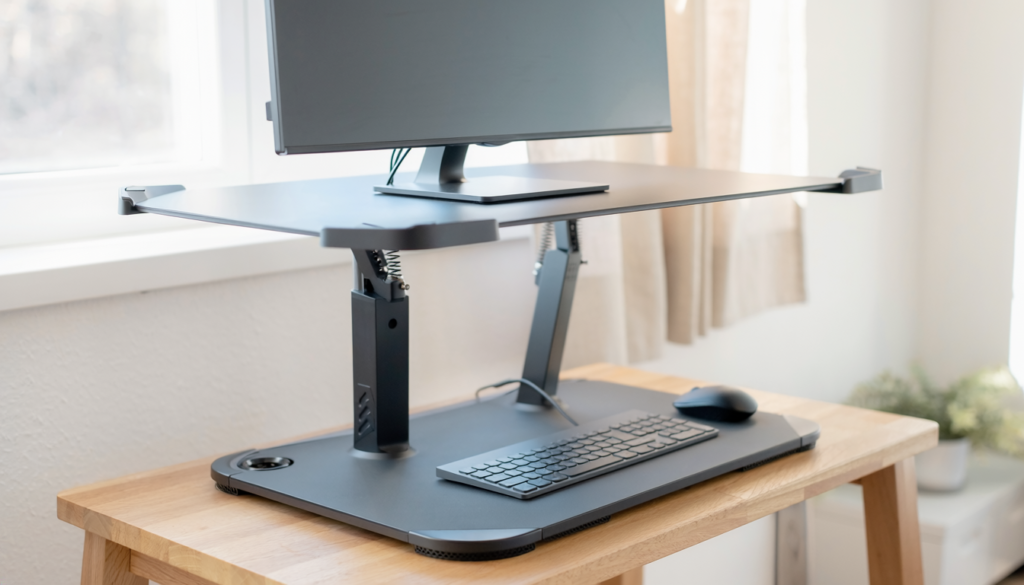
Standing desk converter raised on a compact home office desk
Smart Home

Best Standing Desk Converter for a Small Desk

Disclosure: As an Amazon Associate, My Indoor Space may earn from qualifying purchases made through links in this guide, at no extra cost to you.

A desk converter lets you alternate sitting and standing without replacing the desk. It also raises the monitor, keyboard, and everything on the platform. On a small desk, the motion path and keyboard tray can crowd the space you were trying to save.

Quick verdict

Start with a compact two-tier converter whose base fits the desktop with room for the mouse and whose keyboard tray sits at a comfortable height in both positions. Measure the full raised footprint. Vari lists a 30-inch Essential model, but even a “30-inch” converter may be too deep for a narrow desk; use actual dimensions, not the model name.

How this guide was made: a research-based comparison of product types, published maker details, and the practical fit questions below. We have not claimed hands-on testing.

Who should buy it—and who should skip

For: Someone with a stable existing desk, a regular monitor and external keyboard, and a reason to alternate positions without replacing furniture.

Skip: Skip a converter if the desk already wobbles, the keyboard tray will be too high while seated, or you mostly use a laptop without external input devices. A purpose-built adjustable desk may solve the geometry better.

Compare the real alternatives

Option Best for Main trade-off
Two-tier manual converter Monitor plus separate keyboard Adds height even when fully lowered
Single-tier platform Laptop or compact setup Keyboard may rise too high
Adjustable desk Full work-surface movement More cost and setup

Map the base and motion path

Put paper on the desk matching the published base dimensions. Leave clearance for a lamp, speakers, and any monitor arm clamp. Some designs move forward as they rise, so measure distance to your body and furniture behind the desk at full height.

Separate monitor height from keyboard height

A good standing position puts the display and input devices in workable places. If the keyboard rests on the same raised shelf as the display, one may be too high or low. A lower keyboard tray is useful only if it also fits your mouse without forcing you to reach.

Check weight and lift feel

Add monitor, laptop, speakers, and other items to estimate the actual load, then compare with the converter’s rated capacity. Check two separate limits: the converter’s capacity for equipment, and the underlying desk’s capacity for the converter itself plus all equipment and other items. A heavier unit may be stable but difficult to relocate. With a manual lift, consider whether the handle, release, and motion are comfortable for the person using it.

A real small-desk fit check

Vari’s comparison table lists the Essential 30 as needing 25.75 inches (65.4 cm) of desk depth, with a 25 lb equipment limit. The converter itself weighs 42.56 lb; fully loaded to that limit, it adds about 67.6 lb to the desk before other desk items. A 24-inch-deep desktop fails that listed depth requirement even though it may be wider than 30 inches. Check the exact model’s current installation guide before ordering.

Keep cables moving safely

Route monitor and power cables through the converter’s full range before securing them. Too little slack can pull a plug or monitor; too much can catch a chair wheel. OSHA’s workstation guide also emphasizes enough cord length for flexible positioning.

Best value

A compact two-tier manual design that fits both the desk and the user is the best value; avoid buying a wider platform just because it holds more monitors.

When to pay more

Electric lift earns its extra cost for frequent changes or a heavier setup when the mechanism and desk can support it.

Buying mistakes

  • Measuring only the top platform, not the base and tray.
  • Ignoring the height added while seated.
  • Forgetting cable slack when the converter rises.

Questions buyers ask

Will a converter work on a narrow desk?

Only if its base and moving parts stay fully supported and the keyboard tray does not block comfortable seating.

Does it improve posture automatically?

No. Screen, keyboard, chair, and standing height still need adjustment for the individual.

Final winner

Fit and usable keyboard height decide this purchase. The best converter for a small desk is often the narrower one you can place and raise comfortably.

Related reading: monitor arm for a small desk; under-desk footrest guide.

Research sources: Vari Essential 30 specifications; OSHA workstation purchasing guide.

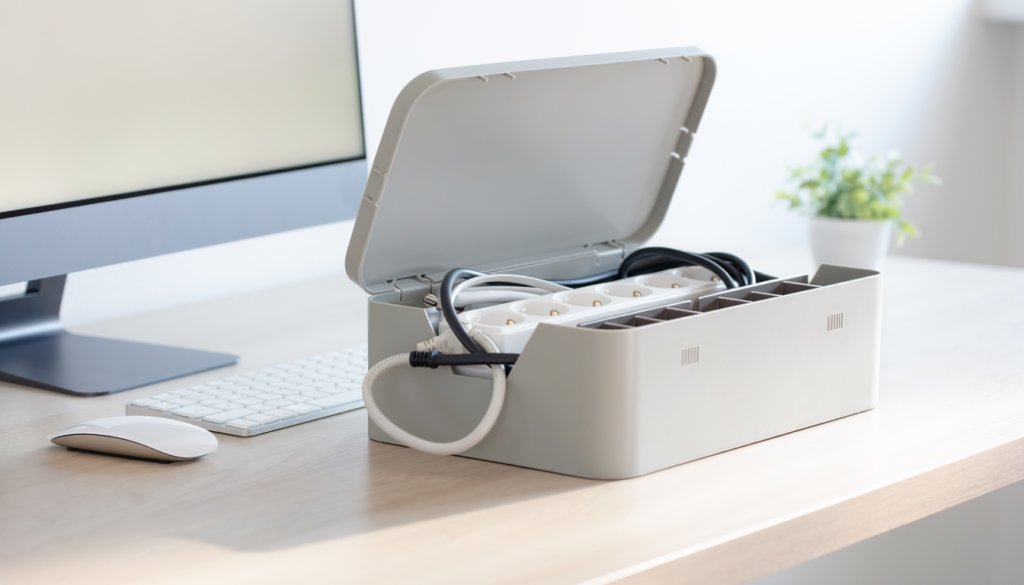
Cable management box organizing a power strip and cords on a home office desk
Smart Home

Best Cable Management Box for a Home Office
Disclosure: As an Amazon Associate, My Indoor Space may earn from qualifying purchases made through links in this guide, at no extra cost to you.

A cable box can make the floor under a desk look calmer, but hiding cords is not the same as making them safe. The useful box has enough room for the actual power strip and bulky adapters, keeps ventilation and inspection possible, and does not turn plug changes into a chore.

Quick verdict

A roomy, ventilated box with smooth cable exits and an easy-open lid is a better choice than the smallest box that barely closes. Measure the power strip with its plugs inserted and keep the strip accessible according to its manufacturer’s instructions. Do not conceal damaged or overloaded electrical gear.

Who this is for—and when to skip it

Buy it for: A fixed desk where visible adapters are the clutter problem and the equipment instructions permit enclosure with adequate ventilation.

Skip it when: You only need to gather a few loose cords, frequently swap plugs, or the adapters must remain uncovered. Reusable ties or an accessible under-desk tray may solve the problem with less bulk.

How this guide was made: a comparison of organizer types, space requirements, and access trade-offs. No individual cable box is presented as hands-on tested or as making an electrical setup safe.

Which type fits your home?

Type Best for Trade-off
Lidded cable box One power strip and a few adapters Check ventilation and internal height
Under-desk cable tray Keeping outlets off the floor May require drilling and safe mounting
Adhesive cable raceway One or two visible cable runs Does not house a power strip
Reusable cable ties Organizing individual cords Does not hide chargers or adapters

Measure with everything plugged in

A power strip’s listed length does not include angled plugs, transformer blocks, or bend room for cords. Assemble the real setup and measure its tallest and widest points. If the lid presses against plugs or forces a cable into a tight bend, use a larger box or a different setup.

Ventilation and accessibility

Chargers and electrical devices may generate heat. Follow the instructions for the strip and power adapters, including any requirement to remain uncovered. Keep switches, plugs, and cords reachable so you can disconnect equipment quickly. A box with simple openings and a removable lid makes inspection easier.

Route cords without creating a trip point

Choose rounded openings that do not abrade insulation. Route the main power lead away from chair wheels, doors, and water. Reusable ties make future changes less wasteful than tight one-use bundles. Keep enough slack for monitor arms or height-adjustable desks to travel through their full range.

Clean the system, not just the floor

Dust still collects inside a box. Unplug equipment before routine cleaning and check for wear, loose plugs, and unusual warmth. A tidy enclosure cannot increase the strip’s electrical rating or make daisy-chaining safe.

Best value

A simple ventilated box sized for your real plug arrangement is the best value for a fixed desk.

When the upgrade earns its price

A mounted tray is worth considering if you frequently move a sit-stand desk and need cables and the strip to travel together; confirm the mounting method suits the desktop.

Buying mistakes to avoid

  • Measuring an empty power strip instead of one with adapters attached.
  • Blocking ventilation or covering equipment against its instructions.
  • Running cords where chair wheels can crush them.

Common questions

Can a power strip go inside any cable box?

Follow the strip and adapter manufacturers’ instructions. Choose adequate ventilation and access; some equipment should remain uncovered.

Will a box solve overloaded outlets?

No. It only organizes cables. Check ratings and reduce loads rather than hiding an unsafe setup.

Final pick

The right cable box accommodates the live setup with room for plugs, airflow, and inspection. Its clean appearance is useful only when the electrical arrangement remains sound.

Keep comparing with our smart power strip guide, small-desk monitor arm guide.

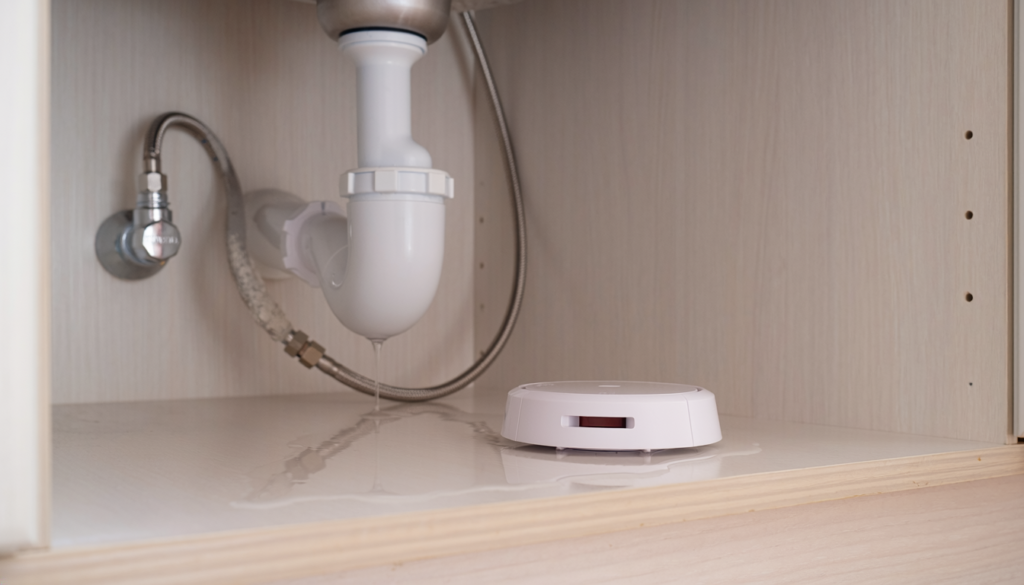
Compact water leak detector placed beside an apartment sink cabinet
Smart Home

Best Water-Leak Detector for Apartments

Disclosure: As an Amazon Associate, My Indoor Space may earn from qualifying purchases made through links in this guide, at no extra cost to you.

A water-leak detector cannot stop every leak, but it can warn you while a small puddle is still becoming a bigger problem. In an apartment, the best sensors are compact, loud, easy to place under appliances, and capable of sending an alert when nobody is home.

Quick verdict

Choose a battery-powered sensor with contacts on both the top and bottom, a loud local alarm, clear low-battery warnings, and optional phone alerts that do not depend on an expensive subscription. Place several inexpensive sensors at the most likely leak points rather than relying on one premium device.

Who it is for—and who should skip it

Leak sensors suit apartments with washing machines, dishwashers, water heaters, sinks, aquariums, air conditioners, or aging supply hoses. They are especially useful when a leak could affect a neighbour below.

Skip a connected model if it requires a hub, subscription, or network setup you will not maintain. A simple audible sensor is better than a smart device that stays offline.

Compare the main types

Type Best for Main trade-off
Audible spot sensor Low-cost local warning No alert when away
Wi-Fi spot sensor Direct phone notifications Higher battery and network demands
Hub-based sensor Multiple sensors and automation Requires compatible hub
Sensor cable model Coverage along appliances or walls More careful placement
Automatic shutoff system Whole-home protection Installation, permission, and cost

Best value: loud audible sensor

A basic sensor provides strong value under a sink or beside a washing machine. It needs no account or network and can run for a long time on replaceable batteries.

Choose a test button, loud alarm, corrosion-resistant contacts, and a design that detects a shallow puddle. Test from the next room with doors closed, not only while standing beside it.

Upgrade worth it: connected multi-sensor kit

A connected kit is worth the upgrade if you travel, work away from home, or have several leak points. One hub can connect multiple small sensors and send phone notifications.

Confirm whether alerts require a subscription, how the system behaves during internet or power outages, and whether the hub has battery backup. A local siren remains important.

Sensor design and coverage

Bottom contacts detect water spreading across the floor. Top contacts can detect drips from above. A remote cable or probe reaches behind appliances where the main alarm body would be hard to hear or retrieve.

Do not place contacts on permanently damp surfaces or where routine mopping causes false alarms. A small tray beneath a connection can direct early drops toward the sensor.

Best places in an apartment

  • Under kitchen and bathroom sinks near supply and drain connections.
  • Behind or beside the washing machine.
  • Near a dishwasher without blocking ventilation or service access.
  • Beside a water heater or fan-coil drain area when permitted.
  • Near a portable air conditioner drain point.
  • Beside an aquarium, humidifier, or refrigerator water line.

Keep the device accessible enough to test and replace batteries. Never push it against moving, hot, or electrically unsafe components.

Phone alerts and privacy

Check app support, update history, account security, multi-factor authentication, and data-sharing policies. Give the device only the permissions necessary for alerts.

Set notifications so they are loud and distinct. A silent alert buried among promotions offers little protection.

Build a response plan

Know where the apartment water shutoff is, whether tenants are permitted to operate it, and how to contact building management or emergency maintenance. Save the number in the phone.

A sensor is an early-warning tool, not a repair. Address supply hoses, seals, blocked drains, condensation, and damaged appliances promptly.

Common buying mistakes

  • Buying one sensor for an apartment with several risk points.
  • Choosing app alerts without testing the local siren.
  • Ignoring subscription or hub requirements.
  • Placing the sensor where cleaning water triggers it.
  • Forgetting battery replacement and monthly testing.
  • Receiving an alert without knowing whom to call or what to shut off.

Frequently asked questions

Do leak detectors need Wi-Fi?

No. Basic models sound a local alarm. Wi-Fi or a hub is only needed for remote notifications and connected automations.

How many sensors does an apartment need?

Use one at each meaningful risk point. Kitchens, bathrooms, laundry equipment, water heaters, and connected appliances are common priorities.

Can a renter install an automatic shutoff valve?

That is a plumbing modification and normally needs landlord approval and qualified installation. Portable sensors require far less commitment.

How often should sensors be tested?

Follow the manufacturer’s schedule and test after battery changes, app updates, router changes, or moving the device.

Final winner

The best apartment setup is a multi-pack of compact battery sensors with loud local alarms, top and bottom contacts, clear battery warnings, and optional subscription-free phone alerts. Coverage and a response plan are more valuable than one expensive sensor in the wrong location.

Monitor related conditions with our home humidity monitor guide, and compare no-fee monitoring options in our indoor security camera guide.

Scroll to Top