Smart Home

Useful smart-home devices, connected living tips and practical technology.

Microphone beside a laptop on a desk
Smart Home

Samson Q2U vs Audio-Technica AT2040USB: Do You Need XLR?

Disclosure: As an Amazon Associate, My Indoor Space earns from qualifying purchases through links in this article, at no extra cost to you.

Quick verdict

Choose Q2U when you want USB now, XLR flexibility later, and a starter recording bundle. Choose AT2040USB when its USB-only workflow and onboard monitoring controls suit you, with a suitable stand budgeted. Higher digital specifications alone are not a reason to expect a better voice recording.

Research-based buying guide. Information checked October 16, 2026. We have not tested these products hands-on; published specifications and our buying judgments are identified separately.

Samson Q2U microphones

AT2040USB microphones
Microphone beside a laptop on a desk
Illustrative recording setup; neither compared microphone is identified. Photo: Pexels.

A USB microphone can simplify voice recording on a home computer, but the microphone price is only part of the setup. You also need a position close enough to use, a stable mount and a way to hear the recording. These two dynamic microphones provide different routes to that complete arrangement.

Compare the features you will use

Question Samson Q2U AT2040USB
Connection path USB and XLR outputs USB output
Headphone monitoring Headphone output with level control Headphone level and mix controls
Mounting budget Check the supplied tripod bundle Mounting clamp included; budget a suitable stand or arm
Other controls On/off control Mute and low-cut controls

When Q2U is the better starting point

Samson lists a tripod stand, clip, windscreen and connection cables in its Q2U pack. Verify the actual seller’s package and hardware version. A used microphone, a regional bundle and a current retail kit may not include identical accessories or cable connectors.

XLR gives a route to a compatible interface or mixer later. It is not required for basic USB recording, and it adds little value if you never plan to use it. Do not buy an interface simply because the socket exists; first identify a recording task the computer connection cannot handle.

When AT2040USB makes sense

Audio-Technica specifies headphone level and mix controls, mute, a low-cut function and an integrated shock-mount design. These can be useful workflow features for a regular desk setup. They do not establish that every room noise disappears or that a shock mount prevents all keyboard vibration.

The published accessory list includes a mounting clamp and thread adapter, rather than a complete desk stand. Include a compatible stand or arm in the purchase total. A microphone advertised at a discount can still be the more expensive complete setup once support and cable routing are included.

Position is part of the purchase

Both models need the appropriate speaking orientation and placement described in their manuals. A dynamic microphone is not a substitute for using the correct distance or reducing avoidable noise. Test speech, keyboard use and normal movement in your actual room before judging the equipment.

Use the headphone output and controls as the instructions specify. Direct monitoring and hearing the computer’s playback are different tasks; check that your preferred recording app and audio routing suit the microphone. A voice call may also apply its own processing, which can change what other people hear.

Is the more elaborate option worth it?

Choose the lower-cost complete Q2U package when its features cover your work. Pay for AT2040USB when its controls and mounting plan improve a routine you use often. Keep an existing suitable microphone if a better position solves the main issue. We have not conducted a listening comparison and do not rank the sound quality from specification numbers alone.

Compare listings in your country

These buttons open matching Amazon search results, rather than a guaranteed in-stock offer. Confirm the exact model, seller, included parts, delivered price and return terms. Prices and availability can differ between the United States and Canada.

Samson Q2U microphones

AT2040USB microphones

Related guides on My Indoor Space

Sources and research

Laptop and monitor in a home workspace
Smart Home

Logitech C920s vs Brio 100: Which Webcam Fits Home Video Calls?

Disclosure: As an Amazon Associate, My Indoor Space earns from qualifying purchases through links in this article, at no extra cost to you.

Quick verdict

Choose Brio 100 for straightforward seated calls when its narrower view fits your desk. Choose C920s when autofocus and a wider frame are useful. Both support 1080p at 30 fps; paying more does not guarantee that a calling app or a poorly lit room will show more detail.

Research-based buying guide. Information checked October 16, 2026. We have not tested these products hands-on; published specifications and our buying judgments are identified separately.

Logitech C920s webcams

Logitech Brio 100 webcams

Laptop and monitor in a home workspace
Illustrative workspace; webcam model and video quality are not established. Photo: Pexels.

A webcam upgrade should fix a specific problem: poor framing, a weak built-in camera or a need to focus at different distances. Start by looking at your current video-call preview. If your face is dark because a bright window sits behind you, changing the camera alone may leave the main problem untouched.

Compare the published camera features

Feature C920s Brio 100
Full HD mode 1080p at 30 fps 1080p at 30 fps
Focus Autofocus Fixed focus
Diagonal field of view 78 degrees 58 degrees
Privacy cover Included shutter Integrated shutter

When Brio 100 is enough

A narrower view can be helpful when you want a head-and-shoulders frame and less of the room behind you. At a fixed desk position, Brio 100’s simple arrangement may cover the job. Measure how far the display sits from your chair before choosing; a narrow view can feel too tight when the camera is close.

Fixed focus does not mean every object at every distance will look sharp. Check the manufacturer’s guidance and try your normal seating position during the return period. If you regularly show a small object near the lens, choose around that task rather than assuming the 1080p label settles it.

When C920s earns the upgrade

Autofocus can be useful when the subject distance changes, and the wider view provides more space for movement or a second person. That also shows more background. Decide whether you actually want the extra room rather than treating a wider angle as inherently better.

We have not tested focus tracking, low-light performance or image processing side by side. The feature comparison establishes what each product offers; it does not prove which looks better under your lamp or in your meeting software. For that, compare your own preview with the actual app and lighting you use.

Microphones and software can change the result

Both webcams include audio capture, but an existing headset or separate microphone may make that feature unimportant. Select the intended camera and microphone in the calling application. Otherwise, a new webcam can be installed while the app continues using the laptop’s built-in camera or another audio device.

Check the USB connection, display-top mounting and cable route. A webcam may compete with a monitor light bar for space. Also check the app’s supported resolution and account settings: the camera’s maximum is not a promise of the resolution delivered to everyone in a call.

Who should buy or skip?

Buy Brio 100 when you need a basic external camera and its framing works. Pay for C920s when autofocus or the wider field addresses a real task. Keep a working webcam when moving the lamp or adjusting its height solves the problem. A model name containing “Pro” does not, by itself, establish the better purchase for your room.

Compare listings in your country

These buttons open matching Amazon search results, rather than a guaranteed in-stock offer. Confirm the exact model, seller, included parts, delivered price and return terms. Prices and availability can differ between the United States and Canada.

Logitech C920s webcams

Logitech Brio 100 webcams

Related guides on My Indoor Space

Sources and research

Wireless mouse beside a laptop on a wooden desk
Smart Home

Logitech M650 vs M720: Quiet Clicks or Multi-Device Switching?

Disclosure: As an Amazon Associate, My Indoor Space earns from qualifying purchases through links in this article, at no extra cost to you.

Quick verdict

Choose M650 for a one-computer setup when its quiet-click design and available size suit your hand. Choose M720 when switching among up to three devices or its extra controls will be used regularly. Receiver compatibility and hand fit come before a discount.

Research-based buying guide. Information checked October 16, 2026. We have not tested these products hands-on; published specifications and our buying judgments are identified separately.

Logitech M650 mice

Logitech M720 mice

Wireless mouse beside a laptop on a wooden desk
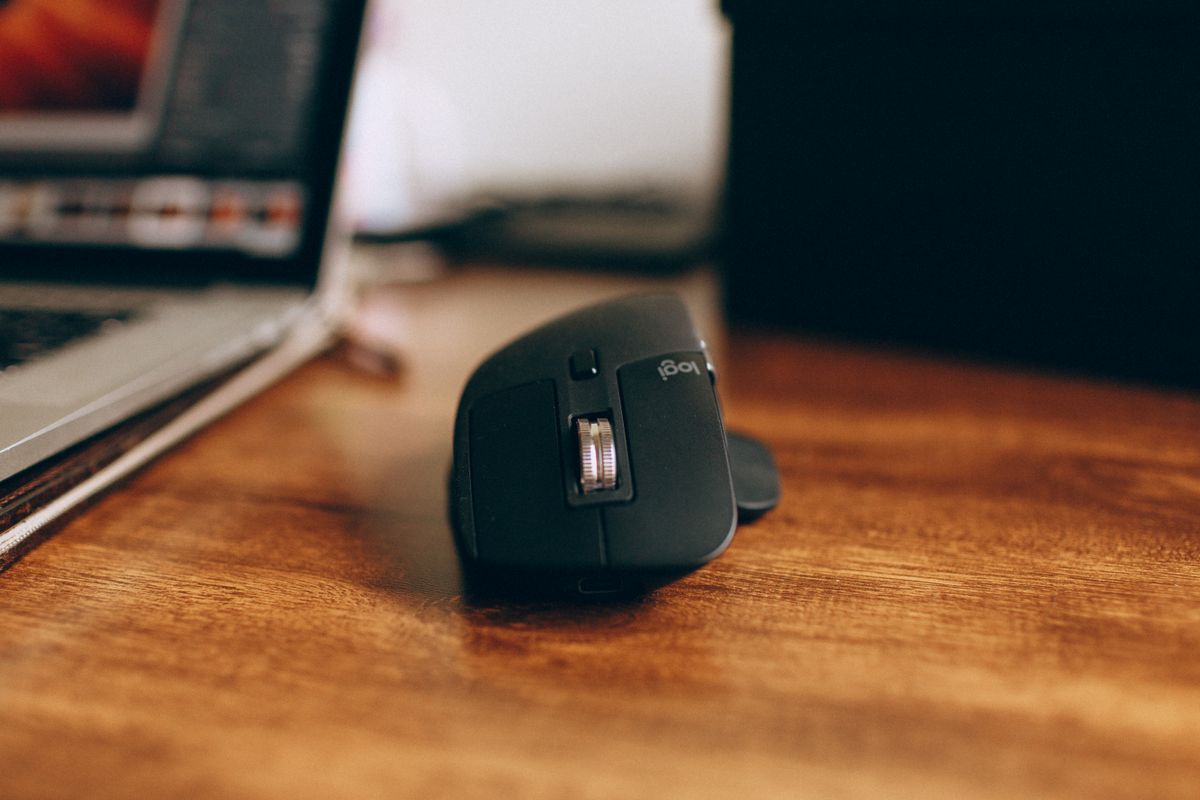
Illustrative mouse photo; neither compared model is identified. Photo: Pexels.

The choice is simpler than comparing every number on the box: do you need a quiet everyday mouse for one computer, or a mouse that can move between several devices? M650 and M720 solve those jobs differently. Neither replaces the need to check its shape against your hand and grip.

The differences that change the purchase

Priority Signature M650 M720 Triathlon
Device connections One connection channel Pair with up to three devices and switch
Receiver family Logi Bolt Logitech Unifying
Useful reason to choose Quiet clicks and suitable size Multi-device routine and extra controls

Buy M650 when one computer is the whole job

Logitech specifies silent main-click switches and a SmartWheel on M650. For a shared room or evening browsing, quieter clicks can be a practical feature. We have not measured noise ourselves, and quiet does not mean every button or wheel action is inaudible.

Check the size and handedness of the actual listing. The M650 family includes different versions; a photograph of one should not establish the dimensions of another. If you can try the shape, assess the side-button reach without changing your normal grip. Paying less for the wrong size is not a useful saving.

Buy M720 when switching is part of every day

M720 can pair with up to three devices and switch using its Easy-Switch control. That suits a desk where a personal laptop, another computer and perhaps a compatible tablet all need the same mouse. The feature adds less value if you only move between applications on one computer.

Its dual-mode scrolling and extra controls can also help with long pages or repeated actions. Logitech’s Flow software functions are separate from basic device switching and have operating-system and software requirements. Verify those requirements if moving content between computers is the feature you actually want.

Do not buy the wrong receiver

Bolt and Unifying are different systems. A receiver from one family is not a universal spare for the other. Check the included receiver, available USB port and Bluetooth support on the computer. A USB-C-only laptop may need an appropriate adapter for a supplied USB-A receiver.

Software-based customization also needs a compatibility check. A mouse can support basic pointing on an operating system while offering fewer configurable features there. An employer-managed computer may restrict software installation, so base the purchase on what you can use on that machine.

When is the upgrade worth it?

Choose the lower-cost suitable M650 if your work stays on one device and its feel is comfortable. Pay for M720 when switching or its controls remove a repeated inconvenience. Keep an existing mouse if it already does those jobs reliably. A larger feature list is not a reason to accept a shape that makes your grip awkward.

Compare listings in your country

These buttons open matching Amazon search results, rather than a guaranteed in-stock offer. Confirm the exact model, seller, included parts, delivered price and return terms. Prices and availability can differ between the United States and Canada.

Logitech M650 mice

Logitech M720 mice

Related guides on My Indoor Space

Sources and research

Collection of smart home bulbs, cameras and hubs
Smart Home

Philips Hue Bridge vs Bluetooth: Do You Need the Hub?

Disclosure: As an Amazon Associate, My Indoor Space earns from qualifying purchases through links in this article, at no extra cost to you.

Quick verdict

Start with Bluetooth if your compatible Hue lights and nearby phone control cover a small setup. Add a suitable Hue Bridge when you need the supported whole-home features, automation or accessories. Check the current Bridge generation and its requirements before buying.

Research-based buying guide. Product information checked October 16, 2026. We have not tested these products hands-on; recommendations distinguish published features from our buying judgments.

Hue Bluetooth bulbs

Philips Hue Bridges

Collection of smart home bulbs, cameras and hubs
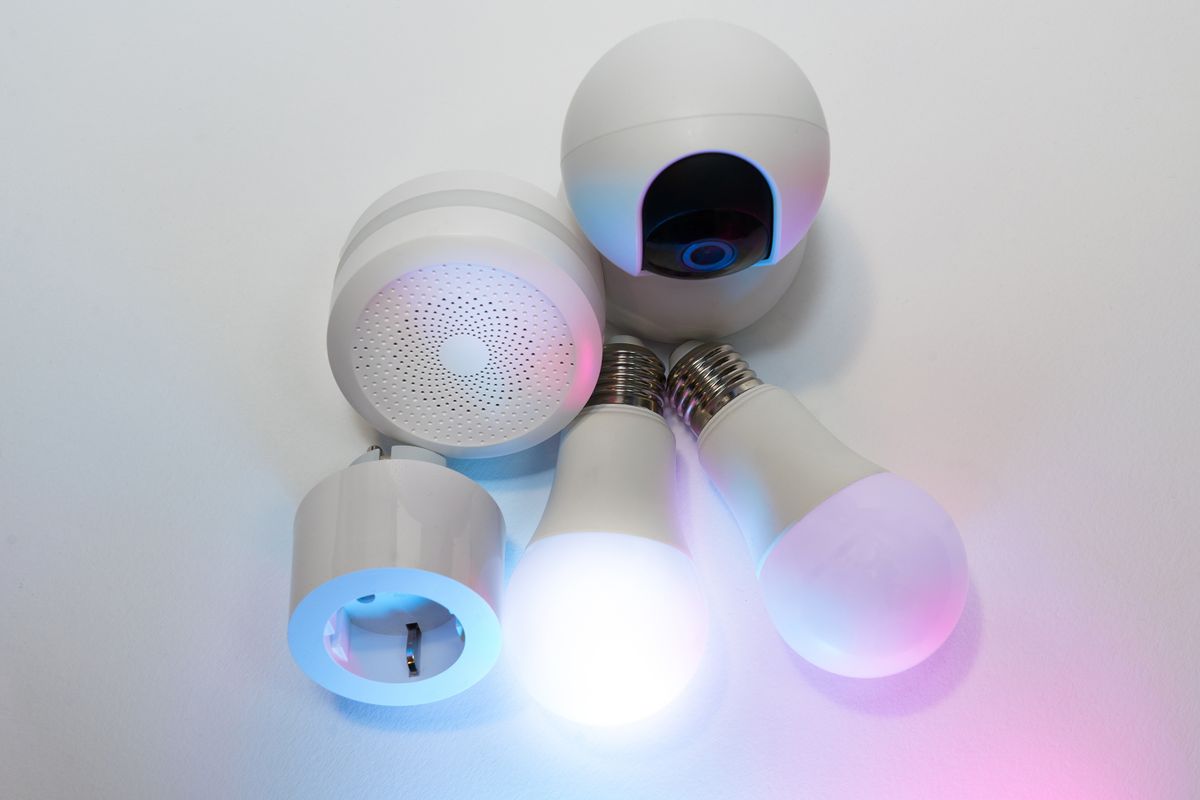
Illustrative smart-home photo; not a verified Philips Hue installation. Photo: Pexels.

A Hue bulb listing may mention Bluetooth, a Bridge and smart-home platforms on the same page. Those describe different ways to build the system. You do not need to purchase every accessory immediately, but you should choose a starting point that matches how you want to control the lights.

Compare the starting points

Question Bluetooth setup Bridge-based setup
Typical starting use Nearby control of compatible lights Broader supported system features
Extra hardware No Hue Bridge for basic supported control Compatible Bridge and its required connections
Expansion Check Bluetooth limits Check the exact Bridge generation’s capacity

When Bluetooth is enough

If you want a few compatible lights in one room and will normally use your phone nearby, Bluetooth can be a sensible first step. Philips Hue’s current explanation describes Bluetooth control for up to ten compatible lights. Verify Bluetooth support on the actual bulbs: a familiar-looking Hue product or an older secondhand bulb is not sufficient evidence.

Consider the household routine. If everyone expects the wall switch to work as before, a smart bulb may lose connectivity when that switch cuts its power. Decide how people will operate it day to day. Buying a Bridge alone does not solve a disconnected bulb’s power supply.

What makes a Bridge worth buying?

A suitable Bridge enables supported system functions beyond a basic Bluetooth arrangement. Review the current Hue feature list for your planned routines, accessories and control outside the room. Do not assume every advertised synchronization or entertainment feature is included with the hub alone; additional hardware, software or services can have their own requirements.

Check the specific generation being sold. Hue’s Bridge range has evolved, so an older capacity figure is not a universal limit for every current Bridge. Compare the official buying guide with the model number in the listing, especially when marketplace sellers offer older stock or imported bundles.

Check the connections and ecosystem

Follow the selected Bridge’s network and power instructions. Place it where the required connections are practical, rather than assuming all generations install in exactly the same way. If you want integration with another smart-home platform, verify the supported route for that combination.

Platform support for a Bridge-based system does not mean every bulb independently contains the same connectivity hardware. Read whether an integration operates through the Bridge, a separate controller or another supported method. This distinction matters when comparing a Hue starter kit with a basic standalone smart bulb.

Buy gradually without buying twice

List the lights, rooms, switches and features you actually expect to use. Compare a starter kit’s included parts with separate purchases, including whether the bulbs have the brightness and color capabilities you want. A discounted bundle is poor value if its bulbs or older Bridge do not fit the plan.

Our buying judgment

Keep Bluetooth for a small compatible setup that already does what you need. Pay for the appropriate Bridge when a specific supported feature justifies it, or when a documented expansion plan exceeds the starting arrangement. Avoid purchasing a hub solely because it appears in the same product photograph.

Compare current listings in your country

These buttons open matching Amazon search listings rather than a guaranteed in-stock offer. Confirm the exact model, seller, included parts, delivered price and return terms. Offers can differ between the United States and Canada.

Hue Bluetooth bulbs

Philips Hue Bridges

Related guides on My Indoor Space

Sources and research

Lit desk lamp beside a computer and plant
Smart Home

Smart Plug vs Mechanical Timer: Which Should Control Your Lamps?

Disclosure: As an Amazon Associate, My Indoor Space earns from qualifying purchases through links in this article, at no extra cost to you.

Quick verdict

Choose a mechanical timer for a simple repeating daily lamp schedule. Choose a smart plug for supported app control, varied routines or remote changes. Either requires a compatible lamp and a load within the device’s stated rating.

Research-based buying guide. Product information checked October 16, 2026. We have not tested these products hands-on; recommendations distinguish published features from our buying judgments.

smart plugs for lamps

mechanical lamp timers

Lit desk lamp beside a computer and plant
Illustrative lamp setup; no timer or smart plug is shown. Photo: Pexels.

A lamp that turns on before you enter a dark room does not necessarily need an app. A simple timer may do the job. The smart option becomes useful when you want to change schedules remotely or link the lamp to compatible routines. Start with the schedule, then test the lamp itself.

Which control matches your routine?

Need Mechanical timer Smart plug
Same daily pattern Often a straightforward fit Can do this with more setup
App or away-from-home changes No network control Check supported remote operation
Setup preference Physical clock and switching segments App, network and possibly ecosystem setup

First, check whether the lamp will restart

Turn the lamp on, unplug it, then reconnect it according to its instructions. Does it illuminate again without touching a control? A basic lamp with a latching switch often suits outlet switching. A touch lamp or electronic control may stay off after power returns, making either accessory inconvenient. Confirm the actual behavior rather than relying on the lamp’s appearance.

Check the timer or plug rating for the particular load type. A maximum resistive rating is not a universal rating for every appliance or lighting load. Use the manufacturer’s published limits and intended applications. Do not assume a model suitable for a small lamp is suitable for heating equipment or a high-power appliance.

Why choose a mechanical timer?

Physical programming can be useful if you want a repeating schedule without a network account. Intermatic provides specific instructions for its TN111 and TN311 timer families; match the instructions to the timer you buy. The available on/off intervals and override behavior can vary.

The dial must be set to the correct time. After an outage or unplugging, check whether the time and schedule still behave as intended. A lamp schedule drifting from your routine is a maintenance issue, even when the device itself is working. Think about how easy the dial will be to reach behind furniture.

When a smart plug is worth more

Smart plugs can support app scheduling, remote switching and ecosystem integration, but the available functions depend on the model and setup. Verify Wi-Fi requirements, supported platforms and whether any hub or additional controller is needed for the features you want. A Matter label should be checked against your intended controller and network.

Read what the device does when internet service or power is interrupted. Local schedules, remote access and voice commands do not necessarily have identical dependencies. If you plan to use a schedule while away, test that exact routine beforehand. Neither choice should be treated as a guarantee of home security.

The economical choice

Buy the timer if one daily pattern solves the problem and its programming intervals suit you. Buy the smart plug if remote changes or integration will be used regularly. Keep the lamp’s existing switch when automation adds no practical value, and leave enough space at the outlet to operate the accessory without bending its cord.

Compare current listings in your country

These buttons open matching Amazon search listings rather than a guaranteed in-stock offer. Confirm the exact model, seller, included parts, delivered price and return terms. Offers can differ between the United States and Canada.

smart plugs for lamps

mechanical lamp timers

Related guides on My Indoor Space

Sources and research

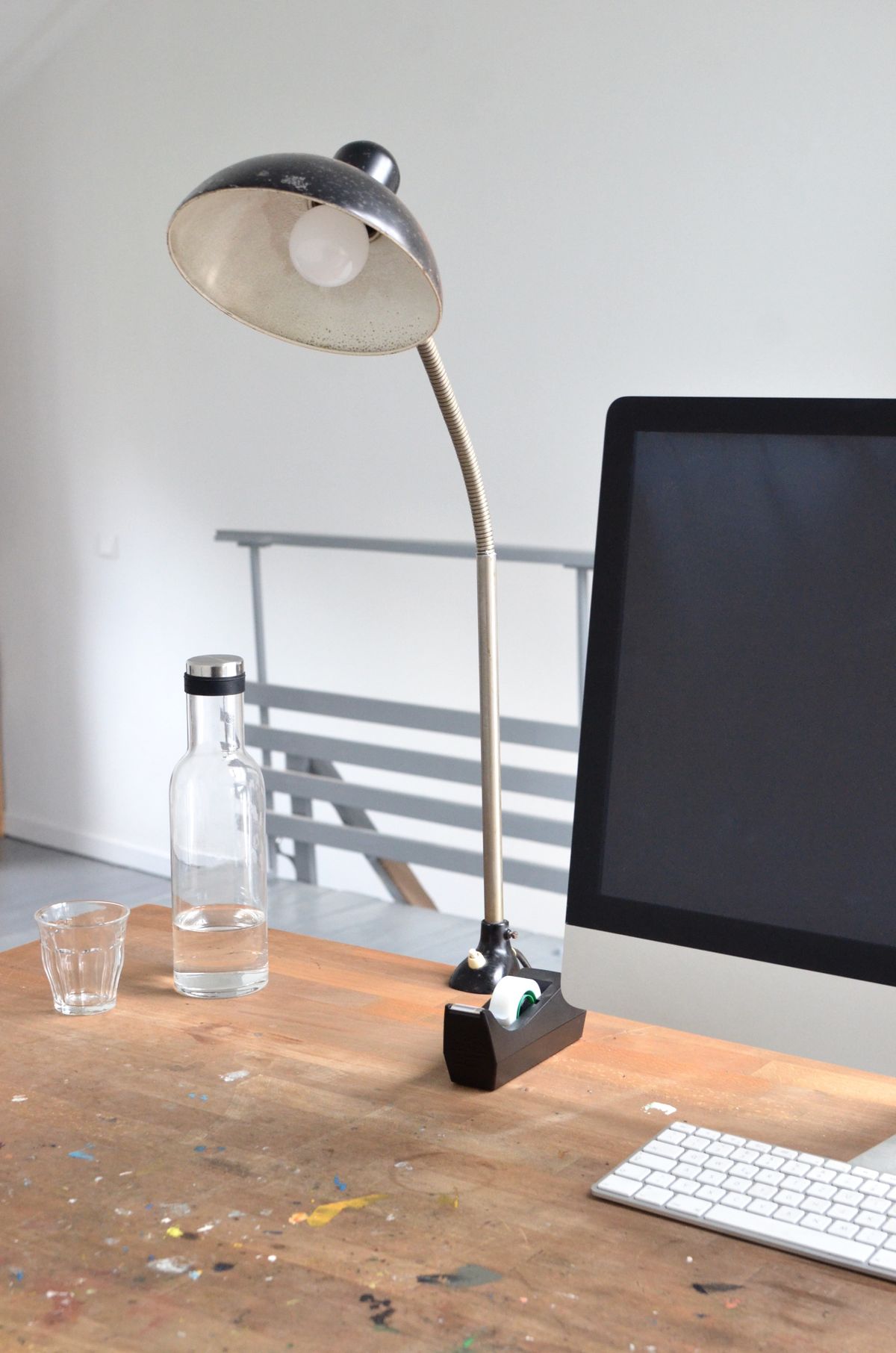
Desk lamp beside a computer monitor
Smart Home

Monitor Light Bar vs Desk Lamp: Which Fits a Small Desk?

Disclosure: As an Amazon Associate, My Indoor Space earns from qualifying purchases through links in this article, at no extra cost to you.

Quick verdict

A monitor light bar is worth considering when a compatible display sits over your main work area and desk space is scarce. A desk lamp is more flexible for side tables, paper tasks and changing layouts. Fit and light direction matter more than the category name.

Research-based buying guide. Product information checked October 16, 2026. We have not tested these products hands-on; recommendations distinguish published features from our buying judgments.

monitor light bars

adjustable desk lamps

Desk lamp beside a computer monitor
Illustrative workspace photo; not a measured glare test. Photo: Pexels.

A small desk needs useful light without losing the space where you write, type or place a drink. A monitor-mounted light can free that surface, while a lamp can move the beam to different tasks. The right purchase starts with the position of your actual work, not a photograph of a perfectly empty desk.

The useful differences

Need Monitor light bar Desk lamp
Clear desk surface Mounts above a compatible screen Needs a base or suitable clamp location
Changing task positions Tied to monitor location Adjustable models can follow the task
Installation check Screen thickness, shape and top edge Reach, base size or desk clamp fit

Check the monitor before choosing a bar

Compare the mount with your screen’s thickness and back profile. Curved displays, unusually thin edges and top-mounted webcams need particular attention. BenQ publishes compatibility information for ScreenBar Pro; use the exact product’s limits rather than assuming every light bar uses the same clamp.

A webcam can compete for the top-center position. Check whether a compatible accessory is needed and whether it is included. Also consider a monitor arm: tilting or rotating the screen moves the light with it. If your desk layout changes frequently, a bar may illuminate a different area each time.

Glare needs a layout check

BenQ describes asymmetric lighting intended to reduce screen reflections on its ScreenBar products. That is a design claim, not evidence that every installation is glare-free. The screen surface, viewing angle, nearby glossy objects and beam adjustment all matter. Buy from a seller with workable return terms if you cannot assess the arrangement beforehand.

A desk lamp can also be positioned poorly. Look for enough adjustment to aim at paper without shining directly into your eyes or reflecting strongly in the display. A lamp placed to the side can be useful for reading or craft work away from the keyboard. Neither category guarantees more comfortable work or a health benefit simply because it carries an “eye-care” label.

Power and controls affect convenience

Check whether the light needs USB power, a dedicated adapter or a wall outlet, and whether that supply comes in the box. A monitor’s spare USB socket is useful only if it meets the light’s requirements and behaves as you want when the display sleeps. Locate the dimmer and color controls: reaching over a webcam every evening can become annoying.

For a conventional lamp, include the base footprint in your measurements. For a clamped model, check desktop thickness and space underneath. A low shelf above the desk can restrict either a lamp arm or a screen-mounted bar.

When to upgrade

Choose the bar when it solves a real surface-space problem and the mount is verified. Choose a lamp when flexibility matters more. Keep an existing lamp if it already lights the work area without troublesome reflections; replacing it with a bar does not automatically improve the result.

Compare current listings in your country

These buttons open matching Amazon search listings rather than a guaranteed in-stock offer. Confirm the exact model, seller, included parts, delivered price and return terms. Offers can differ between the United States and Canada.

monitor light bars

adjustable desk lamps

Related guides on My Indoor Space

Sources and research

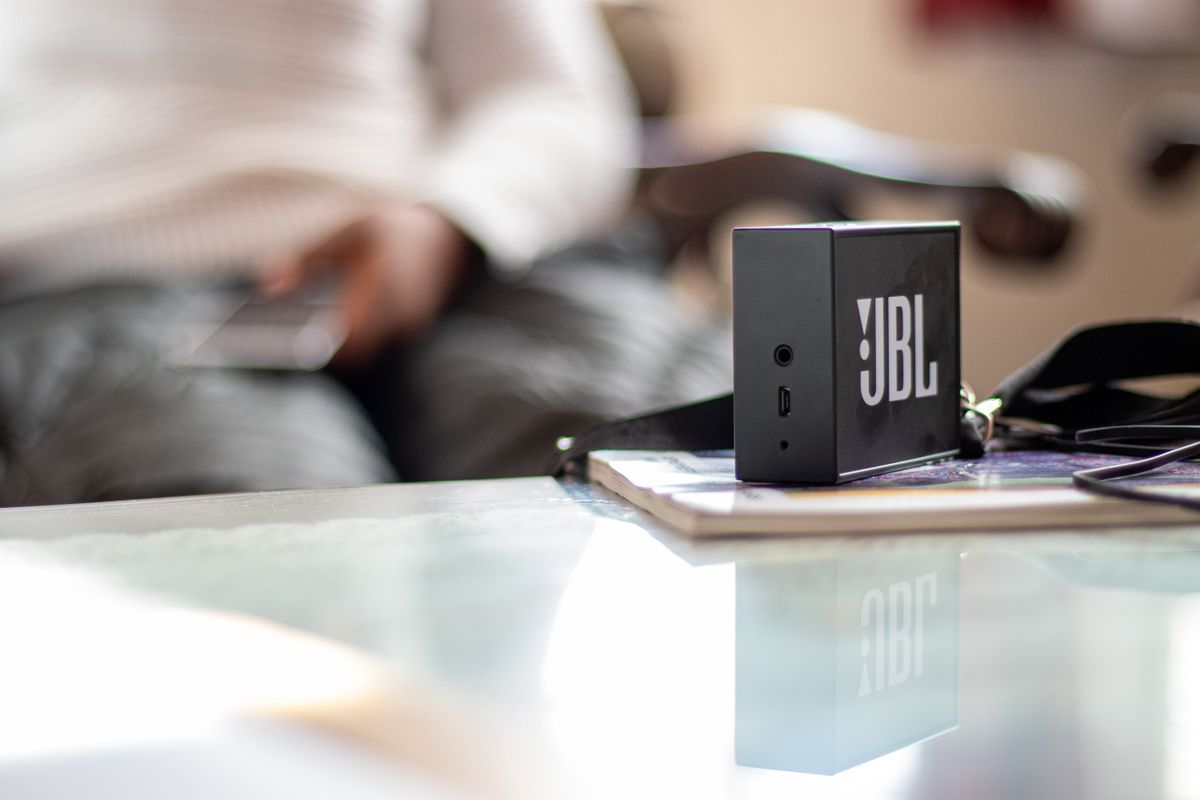
JBL speaker on a reflective table
Smart Home

Smart Speaker vs Bluetooth Speaker: Which Fits a Bedroom?

Disclosure: As an Amazon Associate, My Indoor Space earns from qualifying purchases through links in this article, at no extra cost to you.

Quick verdict

Choose a smart speaker for supported voice commands and home routines. Choose a Bluetooth speaker for straightforward phone playback and, on battery-equipped models, portability. Some speakers offer both: compare features rather than treating the labels as opposites.

Research-based buying guide. Product information checked October 16, 2026. We have not tested these products hands-on; recommendations distinguish published features from our buying judgments.

bedroom smart speakers

Bluetooth speakers

JBL speaker on a reflective table
Illustrative speaker photo; not a comparison test or a recommendation of the pictured model. Photo: Pexels.

Bedroom speakers serve different habits. Someone who wants to ask for a timer while getting dressed needs different features from someone who carries music between a bedroom and balcony. First decide whether the speaker should operate as part of your connected home or mainly play audio selected on your phone.

Compare the jobs, not just the labels

Priority Look for Check before buying
Voice requests and routines Compatible smart speaker Assistant, accounts and supported services
Simple phone audio Bluetooth playback Pairing, controls and connection behavior
Moving between rooms Built-in battery and suitable size Battery is included, not merely optional

Where a smart speaker adds value

A supported voice assistant can handle requests and compatible smart-home controls without reaching for a phone. That is useful if you already own connected lights or plugs. Confirm the assistant ecosystem before ordering; compatibility with one platform does not imply support for all others.

Setup commonly involves Wi-Fi, an app and an account. Music services can require separate subscriptions for particular features. Check the services you already use and what remains available if the internet is unavailable. A smart speaker may also accept Bluetooth audio—Amazon documents Bluetooth pairing for Echo Pop—so phone playback is not exclusive to the other category.

Where Bluetooth is enough

A Bluetooth speaker can be the better value when your phone already handles playlists, podcasts and volume. It avoids paying for voice functions you never use. Look at physical playback controls and how easily another household member can connect, rather than judging by the largest wattage number.

Bluetooth does not automatically mean battery-powered. Verify the power arrangement, charging connector and the manufacturer’s runtime conditions. Volume, lighting features and use patterns can affect the time between charges. A compact portable design is useful when you move it often, but unnecessary if it will always sit beside an outlet.

Hybrid models deserve a separate look

JBL’s Authentics 300 illustrates the overlap: it combines Wi-Fi and Bluetooth with supported voice features and a battery. That does not mean a less expensive JBL Bluetooth model has those features. Search the exact model and compare its capabilities to your intended routine, not just the brand name.

For bedside use, inspect microphone controls, status lights, minimum useful volume and alarm behavior. A microphone mute button is worth locating in the instructions before purchase. Do not assume any connected speaker will replace a dedicated alarm reliably through every network or power interruption; check how your chosen model handles those events.

Who should spend more?

Pay for smart functions if you expect to use voice requests and compatible automation regularly. Pay for portability if you will carry the speaker. If you only want a small speaker playing from a phone at bedtime, a suitable basic Bluetooth model can be enough. Keep an existing speaker that already performs that job well.

Compare current listings in your country

These buttons open matching Amazon search listings rather than a guaranteed in-stock offer. Confirm the exact model, seller, included parts, delivered price and return terms. Offers can differ between the United States and Canada.

bedroom smart speakers

Bluetooth speakers

Related guides on My Indoor Space

Sources and research

Television and remote in a home entertainment setting
Smart Home

HDMI ARC/eARC vs Optical: How Should You Connect a Soundbar?

Disclosure: As an Amazon Associate, My Indoor Space earns from qualifying purchases through links in this article, at no extra cost to you.

Quick verdict

Use compatible HDMI ARC or eARC when the TV and soundbar support it, especially for integrated control and advanced audio. Optical remains useful for older equipment and simpler setups. Buy a new cable only after checking the ports and formats on both devices.

Research-based buying guide. Product information checked October 16, 2026. We have not tested these products hands-on; recommendations distinguish published features from our buying judgments.

HDMI soundbar cables

optical audio cables

Television and remote in a home entertainment setting
Illustrative entertainment photo; no audio-format test is implied. Photo: Pexels.

A soundbar may accept several connections, but they do not carry the same formats or offer the same control. The best choice depends on the exact TV and soundbar—not the price or appearance of the cable. Start with the labels beside their ports.

Compare the connections

Connection Main reason to use it Important limitation
HDMI ARC TV audio return and compatible HDMI control Format support depends on both devices
HDMI eARC Higher-bandwidth audio return Requires suitable equipment at both ends
Optical Useful connection for older or simpler systems Does not carry the high-bandwidth formats supported by eARC

ARC and eARC are not interchangeable promises

ARC sends sound from the TV back to compatible audio equipment through a designated HDMI connection. Use the marked TV socket and the soundbar connection identified in its instructions. A spare ordinary HDMI port is not necessarily an audio-return port.

eARC provides capacity for higher-bandwidth formats, including Dolby TrueHD and supported object-based formats. That capability does not make every program produce those formats. The source, app, television’s pass-through behavior and soundbar decoding must also match. Some Dolby Atmos delivery uses compressed formats that compatible ARC setups can handle; the Atmos label alone does not tell you the entire signal path.

When optical makes sense

Optical is a reasonable fallback when one device lacks compatible ARC, or when you simply need dependable TV sound with the formats both products support. Check their manuals for supported stereo and surround modes. If you get silence, consult the recommended digital-audio output setting rather than assuming the cable is faulty.

Do not buy an optical cable expecting it to carry the high-bandwidth audio eARC supports. A source connected directly to a soundbar by HDMI is a different path: that source may deliver advanced audio even when a separate optical cable handles TV sound. Keep those two routes distinct when interpreting a manufacturer’s setup example.

Control convenience can justify HDMI

Compatible HDMI-CEC controls can let one remote handle volume and power. Names and settings vary by brand, and interoperability is not guaranteed merely by owning two HDMI devices. Check both manuals and enable the relevant features. Optical does not provide the same HDMI-CEC connection, although particular soundbars may offer separate remote-learning functions.

Test everyday sources before tidying the cables: broadcast TV, built-in streaming apps and any console or player. Confirm volume control, wake behavior, sound synchronization and the soundbar’s reported audio format. A cable replacement cannot add eARC circuitry or a missing decoder to older equipment.

Buy or keep?

Keep optical if your system does everything you want and the supported audio is sufficient. Choose HDMI for compatible control or formats you actually use. Pay for a cable meeting the equipment’s stated specification and required length; premium packaging alone does not unlock extra sound quality.

Compare current listings in your country

These buttons open matching Amazon search listings rather than a guaranteed in-stock offer. Confirm the exact model, seller, included parts, delivered price and return terms. Offers can differ between the United States and Canada.

HDMI soundbar cables

optical audio cables

Related guides on My Indoor Space

Sources and research

Person holding a TV remote in a living room
Smart Home

HDMI Switch vs Splitter: Which Adapter Does Your TV Need?

Disclosure: As an Amazon Associate, My Indoor Space earns from qualifying purchases through links in this article, at no extra cost to you.

Quick verdict

Buy a switch to connect several players or consoles to one TV input. Buy a splitter to show the same source on multiple displays. Neither label alone guarantees the gaming, HDR or audio features your setup needs.

Research-based buying guide. Product information checked October 16, 2026. We have not tested these products hands-on; recommendations distinguish published features from our buying judgments.

HDMI switches

HDMI splitters

Person holding a TV remote in a living room
Illustrative TV setup; no HDMI switch or splitter is identified. Photo: Pexels.

Before comparing prices, draw the signal path in words: how many devices send a picture, and how many screens receive it? This simple count prevents the most expensive mistake in this category—buying an adapter that moves video in the wrong direction.

Switch and splitter compared

Job Buy Typical arrangement
Add a console and streaming box to one TV socket HDMI switch Multiple inputs, one output
Repeat one player on two TVs HDMI splitter One input, multiple outputs
Choose different sources for different TVs Suitable HDMI matrix Independently routed inputs and outputs

When a switch is enough

A switch selects which connected source reaches the TV. Check the input count, remote control or physical button, and how automatic switching behaves. Automatic selection can be convenient, but a device that wakes in the background may make manual control preferable. An available TV HDMI input costs nothing to use, so first check whether rearranging connections avoids buying an accessory.

StarTech’s cited two-input switch supports specified 4K at 60Hz, HDR and HDCP 2.2. That does not make it a 4K at 120Hz gaming switch. If you use high-refresh gaming, variable refresh rate or a particular HDR format, look for explicit support at your resolution throughout the TV, switch and cable chain.

When you need a splitter

A splitter distributes the same source signal. It does not turn a single computer HDMI output into two independent extended desktops. For different applications on two screens, investigate your computer’s supported display outputs or a compatible docking solution instead.

Mixed screens complicate duplication. A splitter may have to negotiate a format both displays accept, while some models include scaling or EDID controls to handle differences. StarTech’s cited four-output model describes its own scaling behavior; do not assume a cheaper two-output product includes the same feature. Check the manual for a 4K television paired with a 1080p monitor, especially if you also want HDR or surround audio.

Small details that affect daily use

Count the extra HDMI cables and the accessory’s power supply in the full cost. Verify the cable lengths against the manufacturer’s supported configuration. A splitter may require power near the equipment even though HDMI itself carries a small electrical supply. Avoid hiding the adapter where its button, remote receiver or connections become inaccessible.

ARC and eARC are separate concerns from ordinary forward video switching. If your soundbar needs a return-audio path from the TV, buy equipment explicitly supporting that arrangement. An unused output or a reversible-looking socket is not evidence of return-audio compatibility.

The value decision

Choose the least expensive model that explicitly supports your complete signal format and routing. Extra outputs do not improve picture quality. Pay for more bandwidth or controls only when your actual sources and displays can use them, and keep the packaging until every connected device has been checked.

Compare current listings in your country

These buttons open matching Amazon search listings rather than a guaranteed in-stock offer. Confirm the exact model, seller, included parts, delivered price and return terms. Offers can differ between the United States and Canada.

HDMI switches

HDMI splitters

Related guides on My Indoor Space

Sources and research

Chargers arranged on a white desk beside a plant
Smart Home

65W vs 100W USB-C Charger: Which Does Your Laptop Desk Need?

Disclosure: As an Amazon Associate, My Indoor Space earns from qualifying purchases through links in this article, at no extra cost to you.

Quick verdict

A compatible 65W charger can be enough for a laptop that specifies that input and charges alone. Choose 100W when the laptop accepts more power or you need a documented power split for several devices. Read the simultaneous-output table before paying for extra wattage.

Research-based buying guide. Product information checked October 16, 2026. We have not tested these products hands-on; recommendations distinguish published features from our buying judgments.

65W USB-C chargers

100W USB-C chargers

Chargers arranged on a white desk beside a plant
Illustrative charger photo; rated output is not established by the image. Photo: Pexels.

The biggest number on a charger is only the start. A 100W adapter may deliver its maximum through one USB-C socket, then reduce that socket’s output when you connect a phone. For a home-office desk, the useful specification is the power your laptop receives in the arrangement you will actually use.

A practical comparison

Your setup Usually the better starting point What to verify
One laptop needing up to 65W Compatible 65W charger Supported input profiles and cable
Laptop accepting higher USB-C input Compatible 100W charger Computer’s charging limit
Laptop plus phone Model with a suitable shared-output table Power to each occupied port

Find the computer’s real requirement

Check the laptop manual and its original adapter. Confirm that it accepts charging through the particular USB-C port you plan to use. Some computers use a separate power connector or need more power than either option supplies for full performance. If a manual requires a higher output, do not assume a compact 65W adapter will keep up simply because the connector fits.

A higher-capacity compatible charger does not force its entire rated output into the laptop. The device and charger negotiate supported power. It also does not guarantee faster charging: the computer’s limits, battery state and workload can be the bottleneck. Keep a working original charger if it already meets your needs.

Shared ports are where comparisons change

Anker’s published 725 specifications illustrate the issue: the USB-C port is rated up to 65W alone, while using its USB-C and USB-A ports together changes the allocation to 45W and 18W. That is a different laptop charging setup despite the same “65W” label.

The cited Anker Prime 100W three-port model lists up to 100W through one USB-C port, and 65W plus 35W for its two USB-C ports together. Other combinations have different limits. These are examples for those particular models, not rules for every charger in either wattage class. Match the model number and the exact port combination.

What deserves the upgrade money?

Spend more when the extra output solves a measured need: a laptop that accepts it, or simultaneous charging that otherwise leaves too little for the computer. Buy the smaller option when it supplies the required profile and you normally charge just one device. A second inexpensive charger may be more convenient than one premium multiport unit if the phone lives across the room.

Check the cable and the whole package

Use a cable rated for the intended charging level and follow both manufacturers’ requirements. Check whether it is included, how far the outlet is from the desk, and whether the adapter blocks an adjacent socket. Compare the delivered cost with the necessary cable, rather than the charger sticker price alone.

Compare current listings in your country

These buttons open matching Amazon search listings rather than a guaranteed in-stock offer. Confirm the exact model, seller, included parts, delivered price and return terms. Offers can differ between the United States and Canada.

65W USB-C chargers

100W USB-C chargers

Related guides on My Indoor Space

Sources and research

Scroll to Top